This guide covers the five most common Azure disk failure modes, step-by-step remediation using the Azure Portal, PowerShell, and CLI, a practical fix-vs-replace decision framework, and the preventive measures that stop failures before they become outages.
Key Takeaways
- Disk failures surface as Portal error states (
provisioningState), Azure Resource Health alerts, or IO errors inside the VM - Fix
AttachDiskWhileBeingDetachedby settingtoBeDetached=truevia PowerShell or the REST API - Zonal LRS disks don't self-recover during a zone outage — restore from snapshot or wait for zone recovery
- Repeated IO errors, wrong disk tier, or missing zone redundancy are all grounds for disk replacement
- Unattached and zero-I/O disks drain budget silently — audit and remove them on a regular schedule
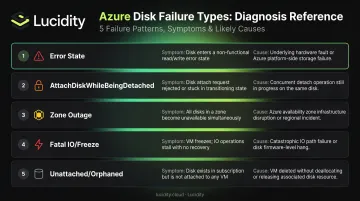
Common Azure Disk Failure Types and Their Symptoms
Most teams encounter the same handful of failure modes repeatedly. Identifying the failure type quickly determines whether recovery takes minutes or hours.
Failure Type 1: Disk in Error State (Portal / Resource Health)
Symptoms: The disk's provisioningState reflects an error in the Portal or via Get-AzDisk; VMs dependent on the disk lose storage connectivity.
Likely cause: An underlying infrastructure fault at the Azure storage stamp level. Microsoft confirms that when a storage scale unit (stamp) fails due to hardware or software faults, only the VM instances with disks on that stamp are affected — availability set deployments are designed to isolate this blast radius.
Failure Type 2: AttachDiskWhileBeingDetached Error
Symptoms: Attempting to update or reattach a data disk returns the error:\n"Cannot attach data disk '{disk ID}' to virtual machine '{vmName}' because the disk is currently being detached or the last detach operation failed."
Likely cause: A prior detach operation didn't complete cleanly, leaving the disk locked in an in-between state that blocks both attach and detach operations.
Failure Type 3: Disk Unavailable Due to Zone Outage
Symptoms: A VM and its zonal LRS disk become unreachable simultaneously; Azure Service Health shows a zone-level incident.
Likely cause: Zonal LRS disks are pinned to a specific availability zone. If that zone fails, the disk becomes unavailable — no automatic cross-zone failover occurs. Recovery depends entirely on the zone restoring itself.
Failure Type 4: Fatal IO or Freeze-Related Error
Symptoms: diskown.errorDuringIO events in logs, SCSI reservation failures, or storage volume going offline.
Likely cause: The host VM underwent an Azure freeze or maintenance event that broke the disk's SCSI reservation — most common in high-availability, multi-attach storage configurations where SCSI reservations are actively used for cluster coordination.
Failure Type 5: Unattached Disk With No Activity
Symptoms: The disk exists in your resource group, isn't attached to any VM, and shows zero read/write IOPS — and still accruing storage charges.
Likely cause: VM was deleted or migrated without cleaning up associated disks, or a failed deployment left orphaned disks behind. The Azure Advisor Cost Optimization workbook specifically flags unattached managed disks as a cost line item.
How to Fix a Failed Azure Disk: Step-by-Step
Before touching anything, confirm what type of failure you're dealing with. Applying the wrong fix (force-detaching a disk during a transient platform fault, for example) can create new problems.
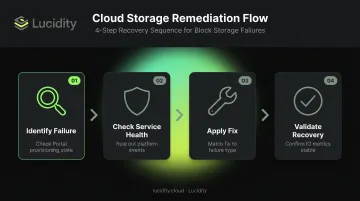
Step 1: Identify the Exact Failure
Check the disk's Overview blade in the Azure Portal for provisioning state, then open Azure Resource Health for resource-level health signals. Document the error code and timestamp.
Run these diagnostic commands before any action:
# PowerShell — retrieve disk state, owner VM, and toBeDetached flag
Get-AzDisk -ResourceGroupName "YourRG" -DiskName "YourDisk"
# Azure CLI equivalent
az disk show --resource-group YourRG --name YourDisk
Step 2: Check Azure Service Health First
Rule out platform-level events before making changes. Check Azure Service Health and the Azure Status page — acting on a Microsoft-side event wastes time and risks making disk state worse.
Determine whether the failure is:
- A transient infrastructure fault (short-lived, self-resolving)
- An operational error state (stuck detach, failed deployment)
- A zone-level outage (requires snapshot restore or zone recovery)
- A configuration gap (wrong redundancy tier)
Step 3: Apply the Fix Based on Failure Type
Stuck in AttachDiskWhileBeingDetached State
# PowerShell — force the detach by setting ToBeDetached flag
$vm = Get-AzVM -ResourceGroupName "ExampleRG" -Name "ExampleVM"
$vm.StorageProfile.DataDisks[0].ToBeDetached = $true
Update-AzVM -ResourceGroupName "ExampleRG" -VM $vm
Alternatively, use the REST API PATCH call with toBeDetached: true in the data disk payload (API version 2019-03-01 or later required).
ZRS Disk After a Zone Failure
ZRS disks synchronously replicate across three availability zones. Recovery steps depend on whether the disk is shared:
- Shared ZRS disk: The secondary VM in a healthy zone can access the disk immediately. Verify SCSI persistent reservation is configured, then initiate failover.
- Non-shared ZRS disk: Force-detach from the failed VM using the command below, then attach to a VM in a healthy zone.
# Azure CLI — force-detach from the failed VM
az vm disk detach -g MyResourceGroup --vm-name MyVm --name disk_name --force-detach
Zonal LRS Disk in a Failed Zone
There's no cross-zone copy. Options:
- Wait for zone recovery (monitor Azure Resource Health alerts)
- Restore from the most recent snapshot or Azure Backup to a new disk in a healthy zone
Fatal IO or Freeze-Related Error
Review platform event logs and SCSI reservation error events to confirm a freeze occurred. Then:
- Restart the VM once the Azure maintenance window ends
- If the disk remains offline after restart, re-initialize the disk reservation
- If the issue persists, contact Azure Support with the disk serial number and error logs
Step 4: Validate the Fix
After remediation:
- Confirm disk state returns to
Succeededin the Portal - Run a read/write test against the disk from within the VM
- Monitor Disk Read Ops/sec and Disk Write Ops/sec in Azure Monitor for 15–30 minutes
- Only return the workload to production after IO metrics show stable operation
Fix vs. Replace: How to Decide
The decision comes down to three factors: nature and repeatability of the failure, current redundancy relative to your SLA requirements, and cost of continued patching vs. migrating to the right disk tier.
| Scenario | Decision | Rationale |
|---|---|---|
| Single transient fault, no recurrence | Fix | Implement retry logic; Azure's three-replica durability handles recovery automatically |
| Repeated IO errors on the same disk | Replace | Snapshot → new managed disk → swap attachment → delete old disk |
| Disk tier mismatch (e.g., Standard HDD under high-IOPS load) | Replace | Upgrade to Premium SSD or Ultra Disk based on IOPS requirements |
| Unattached, zero-I/O, or orphaned disk | Delete | No active workload; costs accrue without value |
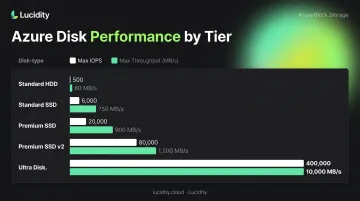
Azure Disk IOPS and Throughput Targets
Before replacing a disk, confirm the target tier meets your workload requirements. Microsoft's official disk type comparison shows:
| Disk Type | Max IOPS | Max Throughput |
|---|---|---|
| Standard HDD | 2,000 (3,000 with Performance Plus) | 500 MB/s |
| Standard SSD | 6,000 | 750 MB/s |
| Premium SSD | 20,000 | 900 MB/s |
| Premium SSD v2 | 80,000 | 2,000 MB/s |
| Ultra Disk | 400,000 | 10,000 MB/s |
At scale, manual audits of orphaned and idle disks miss too much. Lucidity's Lumen continuously surfaces all four idle disk categories — unattached, reserved, unmounted, and zero-I/O — across your Azure environment, showing how long each disk has been idle and the context needed to act safely. Cleanup is one-click, auditable, and reversible, with no scripts required.
Common Mistakes and Preventive Measures
Mistakes That Compound Failures
- Force-detaching or deleting a disk during a platform event creates new problems — check Azure Service Health first. In many cases, the disk would have recovered on its own.
- A disk showing
Succeededin the Portal doesn't confirm IO performance or data integrity. Always run a functional test before returning the disk to production. - Relying on LRS for zone-critical workloads — LRS provides 11 nines of durability but no zone-level resiliency. For production workloads, use ZRS (Premium SSD or Standard SSD) or distribute VMs and zonal LRS disks across multiple availability zones. Note that ZRS is not supported for Ultra Disks or Premium SSD v2.
Proactive Prevention
Most Azure disk failures are detectable before they cause downtime:
- Set up Azure Resource Health alerts — you must configure these manually; Azure does not proactively notify on disk failures by default
- Configure Azure Monitor metric alerts for sustained IO errors or latency spikes
- Run regular idle disk audits to catch misconfigured, over-provisioned, or zero-I/O disks before they become an availability or cost problem
For teams that want continuous coverage without manual auditing, Lucidity Lumen tracks IOPS, throughput, latency, and cost trends across your Azure disks in real time — flagging issues before they surface as incidents.
Frequently Asked Questions
What causes an Azure managed disk to fail?
Failures stem from infrastructure faults at the storage stamp level, failed attach/detach operations, availability zone outages affecting zonal LRS disks, or VM freeze events that break SCSI disk reservations. Most transient faults self-resolve; operational error states like stuck detach operations require manual intervention.
How do I check if my Azure disk is healthy?
Check the disk's Overview blade in the Azure Portal for provisioning state, Azure Resource Health for resource-level signals, and Azure Monitor for IO metrics and error trends. The Get-AzDisk PowerShell cmdlet and az disk show CLI command return current disk state programmatically.
Can I recover data from a failed Azure managed disk?
Azure managed disks maintain three replicas with 11 nines of durability under LRS, so most failures don't cause data loss. Recovery typically means restoring from an incremental snapshot or Azure Backup to a new disk rather than recovering data from the failed disk itself.
What's the difference between an unattached disk and a failed disk?
An unattached disk exists but isn't connected to any VM — often orphaned after VM deletion. A failed disk is in an error state that prevents IO. Both are management problems: unattached disks are a cost issue, failed disks are an availability issue.
How do I replace a failed OS disk without losing data?
Take a snapshot of the failed OS disk, create a new managed disk from the snapshot, then swap it using az vm update --os-disk (CLI) or Set-AzVMOSDisk + Update-AzVM (PowerShell). This process doesn't require deleting the VM.
Does Azure notify me automatically when a disk fails?
No — Azure doesn't proactively alert on disk failures by default. You must configure Azure Resource Health alerts or Azure Monitor metric alerts to receive notifications. Service Health alerts cover zone-level or region-level incidents.