The catch? Shared disks aren't plug-and-play. Get the disk type wrong, skip the cluster manager, or try to change maxShares on a live disk, and you'll face attachment failures or—worse—file system corruption. This guide covers the prerequisites, a complete walkthrough using both the Azure Portal and CLI/PowerShell, the parameters that drive performance and cost, and the mistakes that trip up most teams.
Key Takeaways
- Azure shared disks allow one managed disk to attach to multiple VMs, enabling clustered workloads like WSFC and Pacemaker.
- Only Ultra Disk, Premium SSD v2, Premium SSD, and Standard SSD support sharing—OS disks are excluded entirely.
maxSharessets the VM mount limit and can only be changed after fully detaching the disk.
- A cluster manager (WSFC or Pacemaker) with SCSI Persistent Reservations is mandatory; skipping it causes concurrent writes to corrupt the file system.
- Premium SSD shared disks incur a per-VM mount charge; Ultra Disk and Premium SSD v2 do not.
What You Need Before Sharing Managed Disks in Azure
Preparation determines whether the setup succeeds cleanly. Most configuration failures trace back to skipped prerequisites, not execution errors. Three areas need to be in order before you start: supported disk types and VM requirements, tooling and access, and cluster manager compatibility.
Supported Disk Types and VM Requirements
Azure shared disks are supported on four disk types only:
| Disk Type | Max maxShares |
Notes |
|---|---|---|
| Ultra Disk | 15 | VM size and regional restrictions apply |
| Premium SSD v2 | 15 | Flexible IOPS/throughput provisioning |
| Premium SSD | 3–10 (tier-dependent) | Per-VM mount charge applies |
| Standard SSD | 3–10 (tier-dependent) | Lowest performance ceiling |
Hard limits:
- OS disks cannot be shared. Sharing is for data disks only.
- Standard HDD is not supported. Attempting it will fail at provisioning.
Two additional caveats worth confirming before provisioning:
- Premium SSD requires VMs from a Premium Storage-compatible series (DS-series, GS-series, and equivalents)
- Ultra Disk carries VM size and regional availability restrictions — check both in your target region
Tooling and Access Requirements
- Azure PowerShell: Version 6.0.0 or newer (the
MaxSharesCountparameter isn't available in older versions) - Azure CLI: Use the latest version;
az disk createandaz disk updateboth support shared disk operations - RBAC: Contributor-level access to the resource group is sufficient for disk and VM management
- Optional: Azure Cloud Shell if you prefer running commands directly from the portal
Cluster Manager and OS Compatibility
Azure shared disks don't enforce write ordering at the storage layer. That responsibility falls entirely on the cluster manager. Without one, two nodes writing simultaneously will corrupt the file system—no exceptions.
Supported configurations:
- Windows: WSFC on Windows Server 2008 and newer
- SUSE Linux: Pacemaker/Corosync on SLES High Availability 15 SP1 and later
- Red Hat: RHEL 7.9+ (RHEL 8.8+ for SAP Pacemaker SBD scenarios)
- Ubuntu: 18.04 and above
How to Share Managed Disks in Azure
The process runs in five sequential stages. Complete each one before moving to the next. Skipping ahead creates dependency problems that take far longer to diagnose than to prevent.
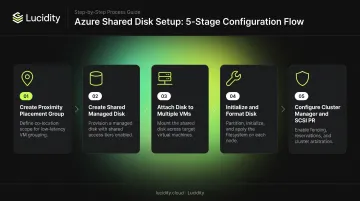
Step 1: Create a Proximity Placement Group (Optional but Recommended)
A Proximity Placement Group (PPG) co-locates VMs on the same physical hardware, reducing inter-node latency. For latency-sensitive clustered workloads, this matters.
In the Azure Portal: search "Proximity Placement Groups" → Create → assign a name and region. Every VM that will share the disk must belong to the same PPG.
Step 2: Create the Managed Disk with Shared Disk Enabled
Portal path: Disks → Create → select disk type and size → open the Advanced tab → toggle "Enable shared disk" to Yes → set Max Shares.
Azure CLI:
az disk create \
  -g <ResourceGroup> \
  -n <DiskName> \
  --size-gb 1024 \
  -l <region> \
  --sku Premium_LRS \
  --max-shares 2
PowerShell:
$diskConfig = New-AzDiskConfig `
  -Location 'WestCentralUS' `
  -CreateOption Empty `
  -DiskSizeGB 1024 `
  -MaxSharesCount 2

New-AzDisk `
  -ResourceGroupName 'myResourceGroup' `
  -DiskName 'mySharedDisk' `
  -Disk $diskConfig
Note that maxShares must be greater than 1 to enable sharing, and each disk tier enforces hard upper limits (see the parameters section below). Size the disk tier for your node count, not just your capacity needs.
Step 3: Attach the Shared Disk to Multiple VMs
Host caching must be set to None—it's unsupported for shared disks and will cause unpredictable behavior if set to anything else.
PowerShell attachment:
$vm = Get-AzVM -ResourceGroupName 'myRG' -Name 'myVM1'
$disk = Get-AzDisk -ResourceGroupName 'myRG' -DiskName 'mySharedDisk'

$vm = Add-AzVMDataDisk `
  -VM $vm `
  -Name 'mySharedDisk' `
  -CreateOption Attach `
  -ManagedDiskId $disk.Id `
  -Lun 0 `
  -Caching None

Update-AzVM -ResourceGroupName 'myRG' -VM $vm
Repeat for each VM that will share the disk. Verify attachment under the disk's Properties tab in the portal.
Step 4: Initialize and Format the Disk Within the Guest OS
After attachment, each VM sees the disk as a raw device. Only one node should perform the initial format. The cluster manager governs all subsequent access.
- Windows: Open
diskmgmt.msc, initialize the disk (GPT is the default and required for disks over 2 TB), then format with NTFS or ReFS. - Linux: Use
fdiskorpartedto partition, then format with the appropriate file system for your cluster configuration.
Step 5: Configure Cluster Management and SCSI PR
This is the step most teams under-invest in. It's also the one that determines whether the shared disk is actually safe.
Windows (WSFC):
- Open Failover Cluster Manager
- Add the shared disk as a cluster disk resource
- Optionally promote it to a Cluster Shared Volume (CSV) for active-active workloads like Scale-Out File Server—the disk will appear under
C:\ClusterStorageon all nodes
Linux (Pacemaker): Pacemaker uses SCSI Persistent Reservation commands to arbitrate access:
PR_REGISTER_KEY— each node registers its keyPR_RESERVE— the active node claims the reservationPR_RELEASE_RESERVATION— the active node releases control
Tools like fence_scsi (Red Hat) and SUSE's SBD daemon handle these operations. Without SCSI PR coordination, concurrent writes from multiple nodes will corrupt the file system.
Key Parameters That Affect Shared Disk Performance and Cost
Shared disks expose several configuration levers that control performance ceilings, cost, and maximum node concurrency. The wrong choices at creation time are expensive to correct.
maxShares Limits by Disk Tier
maxShares is size-bound and cannot be changed while the disk is attached to any VM:
| Disk Type | Tier | Max maxShares |
|---|---|---|
| Premium SSD | P1–P20 | 3 |
| Premium SSD | P30–P50 | 5 |
| Premium SSD | P60–P80 | 10 |
| Standard SSD | E1–E20 | 3 |
| Standard SSD | E30–E50 | 5 |
| Standard SSD | E60–E80 | 10 |
| Ultra Disk | All | Up to 15 |
| Premium SSD v2 | All | Up to 15 |
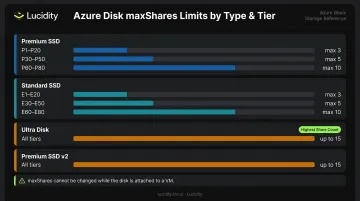
If you need 4 nodes but selected a P20 disk (capped at 3), you can't fix it without detaching the disk from all VMs first.
Disk Type Trade-offs
| Factor | Ultra Disk / Premium SSD v2 | Premium SSD | Standard SSD |
|---|---|---|---|
| Per-VM mount charge | No | Yes | No |
| Billing basis | Provisioned IOPS + throughput | Disk tier | Disk tier |
| Cross-zone sharing | Not supported | ZRS only | ZRS only |
Max maxShares |
15 | 10 | 10 |
Performance Throttles for Ultra Disk and Premium SSD v2
These disk types expose four independently configurable throttles:
--disk-iops-read-write— IOPS for read/write operations--disk-mbps-read-write— throughput for read/write operations--disk-iops-read-only— IOPS for read-only mounts--disk-mbps-read-only— throughput for read-only mounts
Billing for Ultra Disk and Premium SSD v2 is based on total provisioned capacity, IOPS, and throughput across all four dimensions. Over-provisioning these values is a hidden cost driver: teams set high IOPS ceilings at deployment and rarely revisit them.
Billing Impact and Right-Sizing
Premium SSD shared disks add an extra charge for each VM mount on top of the base disk cost. Check the Azure managed disks pricing page for current figures, as mount charges vary by tier.
Ultra Disk and Premium SSD v2 carry a different risk: over-provisioned IOPS appear on your bill whether or not anything is reading or writing. Lucidity's Lumen product addresses this by scoring each disk's tier against actual IOPS, throughput, and latency history — not point-in-time snapshots. It also flags zero-I/O disks that are still incurring mount or provisioning charges without doing any work.
When Should You Use Azure Shared Disks?
Shared disks are purpose-built for clustered workloads that need shared block storage with a cluster manager coordinating access. They're not a general-purpose multi-writer file system.
Ideal Use Cases
- SQL Server FCI — database high availability with SCSI PR-based failover
- SAP ASCS/SCS — SAP application server clustering on WSFC or Pacemaker
- Scale-Out File Server (SoFS) — active-active file access via CSV
- RDS User Profile Disks — shared storage for Remote Desktop Services
- Linux Pacemaker clusters — general HA for stateful workloads on SUSE, RHEL, or Ubuntu
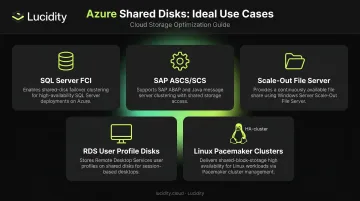
The key benefit across all these cases: the disk remains accessible to surviving nodes if one VM fails, without requiring storage-level replication.
When to Choose an Alternative
Shared disks aren't the right tool for every scenario. Consider these alternatives instead:
- Cross-region replication: Shared disks cannot span Azure regions. Use Storage Replica for volume-level replication across sites.
- SMB/NFS file access: If you need a fully managed distributed file system, Azure Files or Azure NetApp Files are the better fit—they handle multi-client access natively without a cluster manager.
- No shared-state requirement: If the workload doesn't need low-latency block access or coordinated shared state, the operational overhead of running a cluster manager isn't justified.
Common Mistakes and How to Troubleshoot Them
Most shared disk failures trace back to the same handful of configuration errors. Each one below includes the cause and the fix.
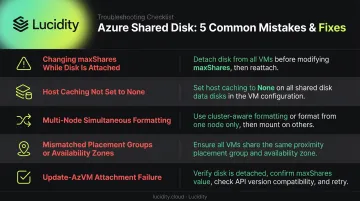
Changing maxShares while the disk is attached: Not allowed. Detach the disk from every VM, record each LUN ID first, update maxShares, then reattach. Attempting to change it on a live disk returns an error immediately.
Enabling host caching on a shared disk: Setting cache to anything other than None causes the configuration to fail or behave unpredictably. Verify the caching setting at the disk attachment level, not just during creation.
Formatting from multiple nodes simultaneously: If two nodes attempt to initialize or format the disk before the cluster manager is configured, the file system will be corrupted. Format from one node only, then bring the cluster manager online before any other node touches the disk.
Mismatched placement groups or availability zones: Ultra Disk and Premium SSD v2 cannot span availability zones. For Premium and Standard SSD, all VMs sharing a disk must belong to the same PPG if PPGs are in use. Mismatched placements cause attachment failures that often surface as generic attachment errors with no obvious cause.
Disk attachment failures via Update-AzVM: If the command fails, check these in order:
- VM size supports Premium Storage (for Premium SSD shared disks)
- VM is deallocated, not just stopped
- Disk and VMs are in the same Azure region
maxSharescount hasn't been exceeded
Conclusion
Azure shared managed disks make it possible to run clustered workloads natively in the cloud without re-architecting them. But the feature has strict requirements: the right disk type, maxShares configured before attachment, host caching set to None, and a cluster manager handling SCSI PR-based access control.
Most failures trace back to skipping one of those constraints: using an unsupported disk type, trying to modify maxShares on a live disk, or assuming the storage layer will coordinate writes without a cluster manager. Attachment errors, file system corruption, and unexpected billing charges are the predictable result.
Get the foundational configuration right before your first attachment, and shared disks are a reliable primitive for clustered workloads in Azure. If you're also trying to keep a handle on what those disks cost — and whether any are sitting idle across your environment — tools like Lucidity give ITOps and FinOps teams real-time visibility into Azure block storage utilization without requiring infrastructure changes.
Frequently Asked Questions
What is an Azure shared disk?
An Azure shared disk is a managed data disk with the shared disk feature enabled, allowing it to attach to multiple VMs at the same time. It uses SCSI Persistent Reservations to coordinate access and requires a cluster manager like WSFC or Pacemaker to safely arbitrate writes between nodes.
What are the different types of managed disks in Azure?
Azure supports four managed disk types with sharing enabled:
- Ultra Disk — highest performance, configurable IOPS
- Premium SSD v2 — high performance with flexible provisioning
- Premium SSD — fixed performance tiers
- Standard SSD — cost-optimized workloads
Standard HDD does not support the shared disk feature.
Does Azure use VHD or VHDX?
Azure managed disks use VHD (Virtual Hard Disk) format with fixed-size disks for VM upload and import paths. VHDX is a newer format used by Hyper-V on-premises but is not natively used in Azure's managed disk infrastructure.
How many VMs can share an Azure managed disk?
The maxShares parameter controls the limit. For Premium SSD, the cap ranges from 3 (P1–P20) to 10 (P60–P80) depending on disk tier. Ultra Disk and Premium SSD v2 support up to 15 simultaneous VM mounts.
Can Azure shared disks be used across availability zones?
Ultra Disk and Premium SSD v2 shared disks cannot span availability zones. Premium SSD and Standard SSD can be shared across zones, but only when Zone-Redundant Storage (ZRS) is configured for the managed disk.
What cluster manager is required for Azure shared disks?
Azure shared disks don't enforce write ordering on their own—a cluster manager is mandatory. On Windows, use Windows Server Failover Cluster (WSFC). On Linux, Pacemaker with Corosync is the standard choice, typically paired with fence_scsi or SBD for SCSI PR fencing.