The answer isn't always yes — and the upgrade process isn't as simple as flipping a switch. Teams routinely hit VM compatibility errors, miscalculate downtime windows, or convert disks that didn't need upgrading in the first place. This guide covers the exact prerequisites, step-by-step instructions for all three methods (Portal, CLI, PowerShell), and the mistakes that cause conversions to fail or cost more than expected.
Key Takeaways
- VM must be fully deallocated (not just OS-shutdown) before the disk SKU can change
- Your VM size must support Premium storage (PremiumIO = True) — check this before scheduling downtime
- Portal, CLI, and PowerShell all produce identical results — pick whichever fits your workflow
- Azure allows a maximum of two disk type changes per disk per 24-hour period
- Premium SSD costs roughly 2x more than Standard SSD — upgrade only when utilization data justifies it
Standard SSD vs. Premium SSD in Azure: What Actually Changes
The performance gap between these two disk types is significant, and understanding it upfront helps you decide whether an upgrade is actually worth the cost.
Performance Differences
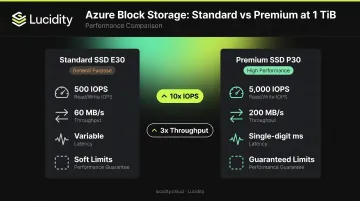
A P30 (1 TiB Premium SSD) delivers 5,000 IOPS and 200 MB/s throughput with consistent single-digit millisecond latency. The equivalent E30 (1 TiB Standard SSD) is capped at 500 IOPS and 60 MB/s throughput — and those limits are soft, not guaranteed.
That's a 10x IOPS difference and more than 3x the throughput at the same disk size. For SQL Server workloads or I/O-intensive applications, that gap shows up directly in query latency and application response times.
Capabilities Exclusive to Premium SSD
Upgrading unlocks features that simply aren't available on Standard SSD:
- On-demand bursting for disks larger than 512 GiB (burst up to 30,000 IOPS)
- Write Accelerator for M-series VMs , which reduces write latency for log files
- Performance tier overrides : achieve higher IOPS without resizing the disk
- Shared disk support for clustered workloads
Cost Trade-Off
Those added capabilities come at a price. Per Azure Managed Disks pricing, a P30 (1 TiB) in East US costs approximately $135/month, while the equivalent E30 (Standard SSD) runs roughly $60/month. That's a meaningful cost increase per disk — so auditing actual utilization before a fleet-wide upgrade is worth doing first.
What You Need Before Upgrading Standard SSD to Premium SSD
Managed Disk Requirement
The disk type conversion feature only works with managed disks. If your disk is unmanaged (stored as a VHD in a storage account), you'll need to convert it to a managed disk via CLI or PowerShell before this process applies.
VM Size Compatibility
This is the most common blocker. Premium SSD requires a VM size with PremiumIO = True. Check this before scheduling any downtime:
az vm list-skus --location eastus --resource-type virtualMachines \
  --query "[?capabilities[?name=='PremiumIO' && value=='True']].name" \
  --output table
If your current VM size fails this check, you'll need to resize to a Premium-capable series (typically DS, ES, FS, GS, or M-series) during the same deallocation window.
Skip this step and the conversion may appear to succeed while the VM either fails to start or silently misses its performance guarantees.
Operational Restrictions to Know
Two hard limits to know:
- Two disk type changes per disk per 24-hour period — this means you cannot use conversion as a quick rollback if something goes wrong on the same day
- Unattached disks can be converted without VM deallocation; attached OS and data disks require the VM to be in Deallocated state (not merely stopped from within the guest OS)
How to Upgrade Standard SSD to Premium SSD in Azure
All three methods (Portal, CLI, and PowerShell) produce identical results. Use the Portal for one-off changes, CLI or PowerShell for scripted fleet-wide upgrades.
Note: The conversion is instantaneous once the VM is deallocated. No data is moved; only the disk's performance profile and SKU change. This applies to all three methods below.
| Method | Best For | Requires CLI/Script? |
|---|---|---|
| Azure Portal | One-off conversions, manual changes | No |
| Azure CLI | Scripted upgrades, automation pipelines | Yes |
| Azure PowerShell | Fleet-wide upgrades, Windows-native automation | Yes |
Using the Azure Portal
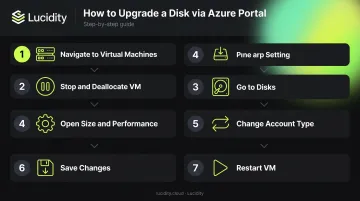
- Navigate to Virtual Machines and select the target VM
- Click Stop and confirm — wait until the status shows Deallocated (not just Stopped)
- Go to Disks and select the target disk
- Open Size + performance
- Under Account type, change from
Standard SSD (StandardSSD_LRS)toPremium SSD (Premium_LRS) - Click Save
- Return to the VM and click Start
Using Azure CLI
Run the following commands:
# Step 1: Deallocate the VM
az vm deallocate --resource-group MyResourceGroup --name MyVM

# Step 2: Convert the disk
az disk update \
  --resource-group MyResourceGroup \
  --name MyDiskName \
  --sku Premium_LRS

# Step 3: Start the VM
az vm start --resource-group MyResourceGroup --name MyVM
Verify the conversion succeeded:
az disk show \
  --resource-group MyResourceGroup \
  --name MyDiskName \
  --query "sku.name" \
  --output tsv
Expected output: Premium_LRS
Using Azure PowerShell
# Step 1: Deallocate the VM
Stop-AzVM -ResourceGroupName "MyResourceGroup" -Name "MyVM" -Force

# Step 2: Get the disk and update SKU
$disk = Get-AzDisk -ResourceGroupName "MyResourceGroup" -DiskName "MyDiskName"
$disk.Sku = [Microsoft.Azure.Management.Compute.Models.DiskSku]::new("Premium_LRS")
Update-AzDisk -ResourceGroupName "MyResourceGroup" -DiskName "MyDiskName" -Disk $disk

# Step 3: Start the VM
Start-AzVM -ResourceGroupName "MyResourceGroup" -Name "MyVM"
If the VM size doesn't support Premium storage, add a resize step between Steps 1 and 2:
$vm = Get-AzVM -ResourceGroupName "MyResourceGroup" -Name "MyVM"
$vm.HardwareProfile.VmSize = "Standard_DS3_v2"
Update-AzVM -ResourceGroupName "MyResourceGroup" -VM $vm
When Should You Upgrade to Premium SSD — And When Should You Hold Off?
Upgrade When You See These Signals
- Sustained high IOPS demand from database workloads (SQL Server, PostgreSQL, Oracle)
- Latency-sensitive applications consistently hitting Standard SSD's throughput ceiling
- Azure Monitor or Azure Advisor showing throttling events on the current disk
- Production workloads that need guaranteed performance, not best-effort
Hold Off When These Apply
- Dev/test environments where peak IOPS rarely approaches Standard SSD limits
- Azure Monitor shows consistently low I/O utilization on the disk
- A performance tier override on an existing Premium SSD might already solve the problem (changing the tier without changing disk size — an often-overlooked option documented in Azure's performance tier guidance)
Audit Before Committing to Fleet-Wide Upgrades
Blanket upgrades — converting all Standard SSDs to Premium SSD across a fleet — can double storage costs while delivering no real performance gain for disks already running well under capacity. Most enterprise environments have many disks where actual IOPS consumption is a fraction of what the current tier provides.
Lucidity's Lumen product addresses this directly. It continuously scores every disk's tier against actual IOPS, throughput, latency, and cost. The result: evidence-backed recommendations on which disks genuinely need a tier upgrade and which are already over-provisioned. In one enterprise deployment, Lumen identified 125 tiering recommendations representing $2.2M/year in potential savings — many of them Premium SSDs running at Standard SSD-level utilization, not the other way around.
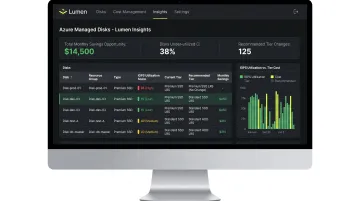
Before converting your first production disk, check what your Azure Monitor metrics actually show over the past 30 days. If you're managing dozens or hundreds of disks, per-disk IOPS visibility across your full estate is worth having before committing to a fleet-wide change — Lumen surfaces exactly that.
Common Mistakes and Troubleshooting When Upgrading to Premium SSD
Mistake 1: VM Not Fully Deallocated
Shutting down the OS from inside the VM (via Windows shutdown or sudo poweroff) does not deallocate the VM in Azure. The VM enters a Stopped state but remains allocated. Attempting to change the disk SKU from this state will return an error.
Fix: Use the Azure Portal's Stop button, az vm deallocate, or Stop-AzVM — and confirm the status shows Deallocated before proceeding.
Mistake 2: Upgrading Before Resizing the VM
The disk conversion itself may succeed, but if the VM size lacks PremiumIO capability, the VM will either fail to start or will not receive the expected Premium performance. The conversion and the VM resize must both happen before the VM restarts.
Fix: Check PremiumIO capability before scheduling the maintenance window. If a resize is needed, do it in the same deallocation window — it adds no extra downtime.
Mistake 3: Burning Both Daily Conversion Attempts on a Failed Rollback
Teams that upgrade a production disk, observe unexpected behavior, and immediately try to roll back may hit Azure's two-per-day limit before they can complete the rollback.
Fix: Test the upgrade in staging first. Validate that performance metrics and application behavior meet expectations before converting production disks.
Troubleshooting: Performance Still Looks Similar After Conversion
If Azure Monitor disk metrics look unchanged after the upgrade, check two things:
- Read/write cache settings on the VM may need reconfiguration to match the workload's access patterns
- Some workloads are CPU-bound or network-bound, not storage-bound — a disk tier upgrade won't move those metrics
Compare pre- and post-upgrade baselines in Azure Monitor (IOPS consumed, disk latency, throughput) to confirm the upgrade delivered the expected improvement.
Frequently Asked Questions
How much does Azure Premium SSD cost?
Premium SSD is priced per GiB provisioned, ranging from P4 (32 GiB) to P80 (32 TiB). See the Azure Managed Disks pricing page for current rates — Premium SSD typically costs roughly 2x the price of an equivalent Standard SSD disk tier. The conversion itself carries no data transfer charge.
Does upgrading from Standard SSD to Premium SSD in Azure cause downtime?
Yes — VM deallocation is required, which causes a brief downtime window. The disk conversion itself is instantaneous, so total downtime amounts to little more than deallocating and restarting the VM. Schedule this during a pre-approved maintenance window.
What VM sizes support Premium SSD in Azure?
Premium SSD requires a VM size with PremiumIO capability — generally DS, ES, FS, GS, and M-series sizes. Run az vm list-skus with a query filter for the PremiumIO capability flag to confirm whether your specific VM size qualifies before scheduling the upgrade.
Can I convert an OS disk from Standard SSD to Premium SSD in Azure?
Yes. OS disks follow the same conversion process as data disks — deallocate the VM, update the disk SKU, and restart. The same VM size compatibility requirement (PremiumIO = True) applies regardless of whether the disk is an OS or data disk.
How many times can I change the disk type in Azure per day?
Azure allows a maximum of two disk type changes per disk per 24-hour period. This limit applies to all conversions, including upgrades and downgrades. Test in staging before converting production disks to avoid consuming both daily changes before a stable state is reached.
What is the difference between Premium SSD and Premium SSD v2 in Azure?
Premium SSD v2 allows independent scaling of size, IOPS, and throughput — giving you direct control over performance and often lower costs for high-performance workloads. Standard Premium SSD ties performance to the disk size tier. Upgrading to Premium SSD v2 carries additional restrictions, including availability zone requirements, compared to a standard Premium SSD conversion.