Introduction
Enterprises running SAP HANA, SQL Server, and transaction-heavy workloads on Azure frequently hit storage bottlenecks. Not because Ultra Disk isn't capable enough, but because the gap between provisioning it and actually optimizing it is wider than most teams expect. Ultra Disk can deliver sub-millisecond latency and up to 400,000 IOPS — yet most deployments capture only a fraction of that ceiling.
Ultra Disk's performance specs are genuinely impressive. But the engineers who squeeze the most out of it understand that configuration choices (VM selection, queue depth, zone alignment, sector size) determine whether you hit those numbers in production or fall well short of them.
This guide covers the IOPS and throughput mechanics you need to understand, along with six concrete optimization strategies. It also addresses how to use dynamic performance adjustments as a planned operational tool — and how to avoid the over-provisioning trap that makes Ultra Disk expensive without making it faster.
Key Takeaways
- Ultra Disk supports up to 400,000 IOPS and 10,000 MB/s throughput per disk, with consistent sub-millisecond latency
- IOPS, throughput, and capacity are independently configurable — more storage space doesn't automatically mean more IOPS
- Performance can be adjusted up to 4 times per 24-hour window without detaching the disk or restarting the VM
- The most common hidden bottleneck is the VM itself: if its uncached IOPS ceiling sits below the disk's provisioned IOPS, you're throttled regardless of disk config
- Over-provisioning adds up fast — right-sizing disk capacity, IOPS, and throughput independently is the only way to avoid unnecessary spend
What Makes Azure Ultra Disk Different from Other Azure Disk Types
Azure offers five managed disk types: Standard HDD, Standard SSD, Premium SSD, Premium SSD v2, and Ultra Disk. Ultra Disk sits at the top — the only option engineered specifically for sub-millisecond latency and extreme I/O workloads.
One important constraint upfront: **Ultra Disk can only be used as a data disk**. It cannot serve as an OS disk, and it's created as an empty disk. Microsoft recommends pairing it with Premium SSD for the OS disk.
The Core Differentiator: Independent Configuration
That OS disk limitation aside, Ultra Disk's real advantage is performance flexibility. With Premium SSD, performance is locked to the disk's size tier — capacity and throughput move together. Ultra Disk decouples them entirely. You set capacity, IOPS, and throughput as three separate values, paying for exactly what your workload requires.
The performance ceiling difference is substantial:
| Disk Type | Max IOPS | Max Throughput |
|---|---|---|
| Premium SSD v2 | 80,000 | 2,000 MB/s |
| Ultra Disk | 400,000 | 10,000 MB/s |
When Ultra Disk Is the Right Choice
Ultra Disk is the appropriate choice for workloads where latency directly affects business outcomes:
- SAP HANA and top-tier Oracle/SQL Server deployments
- Transaction-heavy financial applications
- High-performance AI/ML data pipelines
- Any workload where milliseconds of storage latency have operational consequences
Understanding Ultra Disk Performance: The Numbers That Actually Matter
IOPS Scaling by Disk Size
Ultra Disk provisions at 1,000 IOPS per GiB, with a minimum of 100 IOPS and a hard ceiling of 400,000 IOPS per disk. IOPS can be set independently within the supported range for your disk size.
| Ultra Disk Size | Max IOPS | Max Throughput |
|---|---|---|
| 4 GiB | 4,000 | 1,000 MB/s |
| 8 GiB | 8,000 | 2,000 MB/s |
| 16 GiB | 16,000 | 4,000 MB/s |
| 32 GiB | 32,000 | 8,000 MB/s |
| 64 GiB | 64,000 | 10,000 MB/s |
| 128 GiB | 128,000 | 10,000 MB/s |
| 256 GiB | 256,000 | 10,000 MB/s |
| 512 GiB–65,536 GiB | 400,000 | 10,000 MB/s |
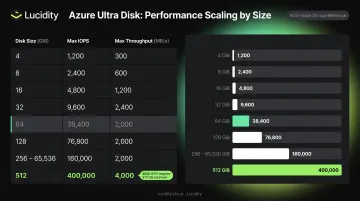
A 64 GiB disk caps at 64,000 IOPS. To reach the 400,000 IOPS ceiling, you need at least 512 GiB of provisioned capacity.
Throughput Formula
Maximum throughput = 0.25 MB/s per provisioned IOPS, up to 10,000 MB/s. Minimum guaranteed throughput is 1 MB/s.
In practice: 5,000 provisioned IOPS yields a max throughput of 1,250 MB/s. To hit the 10,000 MB/s ceiling, you need at least 40,000 provisioned IOPS.
Latency: Average vs. Tail
Ultra Disk is designed for consistent sub-millisecond latency. Microsoft's 2025 platform enhancements delivered an 80% reduction in P99.9 and outlier latency, plus a 30% improvement in average latency.
For transaction-heavy workloads, tail latency matters as much as average latency. One slow I/O operation can stall downstream processes entirely, making P99.9 the number to watch.
VM Reservation Fee
When you enable Ultra Disk compatibility on a VM without attaching an Ultra Disk, Azure charges a per-vCPU reservation fee ($0.006/hour per vCPU provisioned). Teams often forget to disable compatibility after removing a disk — check the Azure Managed Disks pricing page for current regional rates.
Performance Change Timing
Ultra Disk allows up to 4 performance changes per 24-hour window, and each change can take up to 1 hour to take effect. This is not a real-time control — plan changes ahead of anticipated peak events, not in response to them.
6 Strategies to Maximize Azure Ultra Disk IOPS and Minimize Latency
1. Align Disk Size to Your IOPS Requirements, Not Just Capacity
The most common mistake: sizing Ultra Disk based on how much data needs to be stored rather than how many IOPS the workload demands.
Since IOPS scales with size (1,000 IOPS/GiB up to the 400K cap), the minimum disk size to support a target IOPS level is straightforward:
Minimum GiB = Target IOPS ÷ 1,000
A workload requiring 80,000 IOPS needs at least an 80 GiB disk. Because IOPS can be set independently within the supported range, you can provision a larger disk for headroom while keeping IOPS lower initially. Just don't size down and expect to configure IOPS above what the disk size supports.
2. Eliminate the VM-Level IOPS Bottleneck First
This is the most frequently overlooked issue. Ultra Disk does not support host caching, so the VM's uncached disk IOPS limit is the only relevant ceiling. If it sits below your disk's provisioned IOPS, the VM becomes the bottleneck regardless of disk configuration.
Check a VM's uncached IOPS capability with PowerShell:
Get-AzVMSize -Location <region> | Where-Object {$_.Name -eq "<VMSize>"}
For Ultra Disk workloads requiring very high uncached throughput, the Mbdsv3 series supports up to 650,000 remote IOPS and 10,000 MBps remote throughput. Verify specific SKU limits on the Azure VM sizes documentation before provisioning.
3. Use Availability Zone Alignment to Reduce Latency
Ultra Disk must be deployed in an availability zone, and the VM and disk must be in the same zone. Mismatched zones introduce cross-zone latency that directly undercuts the sub-millisecond advantage you're paying for.
Before deployment, verify zone availability:
az vm list-skus --location <region> --resource-type virtualMachines \
  --query "[?name=='<VMSize>'].locationInfo[0].zones"
Note that Ultra Disk availability zone support varies by region. Always confirm availability before deployment.
4. Optimize I/O Queue Depth for Your Workload Type
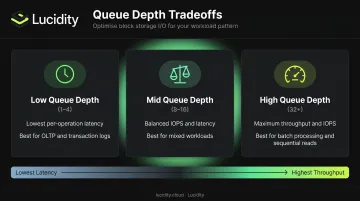
Queue depth has a direct relationship with IOPS, throughput, and latency:
| Queue Depth | Effect | Best For |
|---|---|---|
| 1–4 | Lowest per-operation latency | OLTP, transaction logs |
| 8–16 | Balanced IOPS/latency | Mixed workloads |
| 32+ | Maximum throughput/IOPS | Batch processing, sequential reads |
On Linux, configure queue depth via udev rules or measure with fio. On Windows, use diskspd to benchmark different queue depths against your actual workload pattern. Measure against your actual pattern; don't assume defaults are optimal.
5. Choose the Right Sector Size Before Creation
Ultra Disk defaults to 4K physical sector size, which most modern applications support natively. The exception: Oracle Database versions prior to 12.2 require 512E (512-byte emulation).
Using the wrong sector size causes subtle performance degradation or application errors that are difficult to diagnose after deployment. Specify sector size during disk creation via Portal or CLI. Note that sector size cannot be changed after the disk is created. There's no workaround; you'd need to create a new disk.
6. Understand the Write Accelerator Limitation on M-Series VMs
Write Accelerator and Ultra Disk are frequently discussed together for M-series VMs running SAP HANA or SQL Server. They are not compatible. Ultra Disk does not support Write Accelerator.
The correct pairing for M-series log workloads:
- OS disk: Premium SSD with Write Accelerator enabled
- Data and log disks: Ultra Disk (for extreme IOPS and throughput)
Write Accelerator is a per-disk setting on M-series VMs only, applied to Premium SSD disks. Keep this separation clear when designing storage layouts for SAP HANA or SQL Server on M-series.
Dynamic Performance Tuning: Using Your 4 Daily Adjustments Strategically
Most teams treat dynamic performance adjustment as an emergency tool — something to reach for when a workload is already struggling. A more effective approach treats the 4 daily changes as a scheduled operational lever built into normal capacity planning.
A Practical Scheduling Strategy
- Set IOPS and throughput to what normal operations require (your baseline)
- Schedule a performance increase before known high-demand windows — month-end batch jobs, market open/close, database maintenance
- Reduce provisioning back to baseline after the window closes. Most teams skip this step, and that's where unnecessary cost accumulates
How to Trigger a Performance Change
No disk detachment or VM restart required. Use any of:
# Azure CLI
az disk update --resource-group <rg> --name <disk> \
  --disk-iops-read-write 50000 --disk-mbps-read-write 1000
# PowerShell
$diskUpdateConfig = New-AzDiskUpdateConfig -DiskIOPSReadWrite 50000 -DiskMBpsReadWrite 1000
Update-AzDisk -ResourceGroupName <rg> -DiskName <disk> -DiskUpdate $diskUpdateConfig
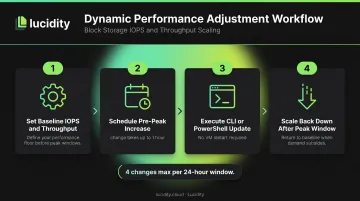
Each request counts toward the 4-per-24-hour limit, so plan deliberately. Speculative adjustments you later need to reverse consume quota you can't recover until the 24-hour window resets. The financial reporting example below shows how to map this to a predictable cost model.
Financial Reporting Example
A financial reporting application needs high IOPS only on the last business day of each month:
| Period | Provisioned IOPS | Provisioned Throughput |
|---|---|---|
| Normal operations (29 days) | 5,000 IOPS | 500 MB/s |
| Month-end peak (1 day) | 40,000 IOPS | 2,000 MB/s |
The cost difference between running at 40,000 IOPS continuously versus 5,000 IOPS for 29 days and 40,000 for 1 day is substantial. Microsoft's flexible provisioning model enables teams to capture that delta — but only if the scale-down actually happens.
Avoiding the Ultra Disk Cost Trap Through Right-Sizing
Unlike Premium SSD — where you pay a flat rate per disk size tier — Ultra Disk charges separately for three dimensions:
- Capacity: per GiB provisioned (in 1 GiB increments)
- IOPS: per provisioned IOPS above the 100 IOPS baseline
- Throughput: per MB/s above the 1 MB/s minimum
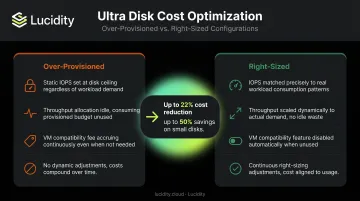
Teams that set IOPS and throughput "just in case" and never adjust them pay for performance that sits idle. Microsoft's own analysis shows right-sizing can reduce Ultra Disk spend by up to 22%, with the flexible provisioning model delivering savings of up to 50% on small disks and 25% on large disks.
Where Costs Hide
Three specific areas warrant an audit:
- VMs with Ultra Disk compatibility enabled but no disk attached incur a $0.006/hour per-vCPU charge — and Azure Disk Storage reservations don't apply to offset it. At scale, this adds up fast.
- Ramping IOPS for a batch job or maintenance window and forgetting to scale back down means paying 8x normal rates the following month — and every month after.
- Setting IOPS to the disk's size ceiling when actual workload demand is a fraction of that level silently inflates costs with no performance benefit.
Continuous Right-Sizing vs. One-Time Audits
Each of these patterns shares a common root: configurations set at one point in time don't stay accurate as workloads shift. Manual audits catch over-provisioning when someone remembers to look. Peaks come and go in the meantime, and IOPS settings drift well out of alignment with actual demand.
Lucidity's Lumen continuously scores every Azure disk's tier against real usage — tracking IOPS, throughput, latency, and cost — and flags configuration changes when the setup no longer fits the workload. Right-sizing becomes an ongoing process, not a quarterly reminder.
Frequently Asked Questions
What are the maximum IOPS and typical latency for Azure Ultra Disk?
Ultra Disk supports up to 400,000 IOPS per disk (at 1,000 IOPS/GiB) and a maximum throughput of 10,000 MB/s. It's designed for consistent sub-millisecond latency, with recent platform enhancements delivering an 80% reduction in P99.9 latency.
What is acceptable latency for Azure Virtual Desktop (AVD)?
AVD profile storage latency should stay in single-digit milliseconds for a good user experience. Ultra Disk isn't typically used for AVD FSLogix profiles: Azure Files Premium (~3ms) or Azure NetApp Files (~1ms) are the standard recommendations. Ultra Disk may be relevant for backend databases powering AVD workloads.
Can Azure Ultra Disk be used as an OS disk?
No. Ultra Disk is only supported as a data disk and is created as an empty disk. Microsoft recommends using Premium SSD for the OS disk when attaching Ultra Disk as a data disk.
How many times can I adjust Azure Ultra Disk performance per day?
Performance can be adjusted up to 4 times within a 24-hour window without restarting the VM or detaching the disk. Each change can take up to an hour to take effect, so plan adjustments ahead of anticipated peaks.
Which Azure VM series are compatible with Ultra Disk?
Confirmed compatible series include FSv2, LSv2/Lsv3/Lasv3, NCv3, NCasT4_v3, ND, NDv2, NVv3/v4, NVadsA10 v5, HC, and HBv2, among others. Compatibility varies by region. Always verify availability using CLI or PowerShell before deployment, as not every VM size supports Ultra Disk in every region.
How does Azure Ultra Disk pricing differ from Premium SSD?
Premium SSD bills by a fixed disk size tier. Ultra Disk charges separately for capacity (per GiB at 1 GiB granularity), provisioned IOPS above the 100 IOPS baseline, and provisioned throughput above 1 MB/s. This three-part billing structure makes right-sizing essential: every unit of over-provisioned IOPS or throughput is a direct cost with no performance benefit.