Introduction
Azure Ultra Disk is the highest-performance managed disk tier Azure offers. With sub-millisecond latency, up to 400,000 IOPS per disk, and up to 10,000 MB/s throughput, it's built for workloads where storage performance directly determines business outcomes.
Ultra Disk is also the most constraint-laden tier in Azure's disk hierarchy — and those constraints trip up even experienced teams. It only works as a data disk. It requires availability zone deployment. The VM must have Ultra Disk capability enabled. Skip any prerequisite, and your deployment fails before writing a single byte.
This guide is for cloud infrastructure, DevOps, and FinOps teams running mission-critical workloads — OLTP databases, SAP HANA, NoSQL at scale — where latency and IOPS consistency matter. It covers the complete configuration sequence:
- Verifying prerequisites before deployment
- Enabling Ultra Disk on a VM
- Creating and attaching the disk
- Validating performance post-attach
- Avoiding the most common deployment failures
Key Takeaways
- Ultra Disk delivers sub-millisecond latency, up to 400K IOPS, and 10,000 MB/s throughput — data disks only, and an availability zone is required
- Verify VM size and zone support before provisioning anything — zone mismatch is the most common deployment failure
- Setup order: confirm zone/VM compatibility → enable
ultraSSDEnabled→ createUltraSSD_LRSdisk → attach → format and mount - Performance (IOPS and throughput) adjusts dynamically without VM restart, but only 4 times per 24-hour period
- Billing covers capacity, IOPS, and throughput separately — over-provisioning any dimension adds cost without improving performance
What Is Azure Ultra Disk and When Should You Use It
Architecture and Position in the Disk Tier Stack
Azure managed disk types include five tiers: Ultra Disk, Premium SSD v2, Premium SSD, Standard SSD, and Standard HDD. Ultra Disk is the highest-performing option.
The architectural gap goes deeper than raw numbers. Microsoft's Ultra Disk documentation describes a virtual disk client (VDC) that lets the compute host communicate directly with storage servers, bypassing the load balancers and front-end servers used for initial connections. Premium SSD routes through the Azure Blob storage cache path instead.
That direct path is why Ultra Disk delivers consistent sub-millisecond latency rather than the cache-dependent performance you get from lower tiers.
Ultra Disk doesn't support disk caching, and that's intentional. Without a cache layer, you eliminate:
- Cache artifacts that skew performance metrics
- Warm-up periods before reads reach full speed
- Cold-read penalties on infrequently accessed data
When Ultra Disk Is (and Isn't) the Right Choice
Ultra Disk is appropriate when a workload requires both sub-millisecond consistent latency and independent control over capacity, IOPS, and throughput. Those two requirements together are the signal.
Workloads that warrant Ultra Disk:
- OLTP databases (SQL Server, Oracle, MySQL, PostgreSQL)
- SAP HANA
- NoSQL at scale (MongoDB, Cassandra)
- Transaction-heavy applications requiring consistent low latency
General web apps, dev/test environments, and non-latency-sensitive workloads should not use Ultra Disk. The cost profile doesn't justify it.
Performance Parameters
| Dimension | Value |
|---|---|
| Size range | 4 GiB – 65,536 GiB (1 GiB increments) |
| Max IOPS | 400,000 IOPS per disk |
| IOPS ratio | Up to 1,000 IOPS/GiB; 100 IOPS minimum |
| Max throughput | 10,000 MB/s per disk |
| Throughput ratio | 0.25 MB/s per provisioned IOPS; 1 MB/s minimum |
| Latency | Consistently sub-millisecond |
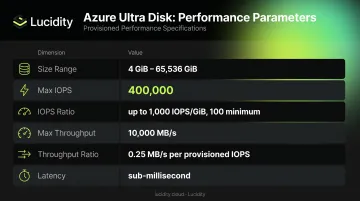
The 2025 Azure Ultra Disk update introduced 1 GiB billing granularity and lower minimums of 100 IOPS and 1 MB/s, reducing waste on smaller disk configurations.
Durability Model
Ultra Disk uses locally redundant storage (LRS), storing three copies of data within the same availability zone. Write acknowledgment is only issued after all three replicas confirm the write. This makes it appropriate for business-critical data — but it is not a substitute for cross-zone replication. Ultra Disk does not support ZRS.
Prerequisites and Requirements for Azure Ultra Disk
Placement Constraints
Ultra Disk requires deployment within an availability zone. Availability sets are not supported. This means the team must identify a supported region and a specific zone within that region before any provisioning begins — not all zones in a supported region have Ultra Disk availability.
To query zone support for a given VM size and region:
Azure CLI:
az vm list-skus --resource-type virtualMachines \
  --location $region \
  --query "[?name=='$vmSize'].locationInfo[0].zoneDetails[0].Name" \
  --subscription $subscriptionId
PowerShell:
$sku = (Get-AzComputeResourceSku | where {
  $_.Locations -icontains($region) -and
  ($_.Name -eq $vmSize) -and
  $_.LocationInfo[0].ZoneDetails.Count -gt 0
})
Look for UltraSSDAvailable in the capabilities output — this confirms the VM size supports Ultra Disk in that zone.
VM Compatibility
Not all VM series support Ultra Disk. Supported families include:
- General Purpose
- Memory Optimized
- FSv2
- Lsv2/Lsv3
- M-series
- NCv3 and ND-series
Availability depends on region, zone, and specific VM size. Always verify current compatibility before provisioning.
Ultra Disk capability must be explicitly enabled on the VM. It cannot be added retroactively to a running VM — the VM must be stopped and deallocated first.
Unsupported Configurations
| Restriction | Detail |
|---|---|
| OS disk | Cannot be used as an OS disk — data disk only |
| Azure Compute Gallery | Not supported |
| Disk caching | Not supported |
| ZRS | Not supported — LRS only |
| Availability sets | Not supported |
Sector Size Selection
Ultra Disk defaults to 4K physical sector size, compatible with most modern applications. Legacy applications — for example, Oracle Database versions prior to 12.2 — require 512-byte sector size (512E). This must be specified at disk creation time. It cannot be changed after the disk is created.
Quota Considerations
Default limits per subscription per region:
- 1,000 Ultra Disks
- 102,400 GiB total Ultra Disk capacity
If your deployment exceeds these limits, request an increase through the Azure portal or support before provisioning.
How to Configure Azure Ultra Disk Persistent Storage: Step-by-Step
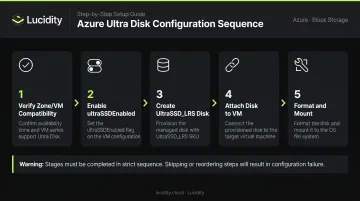
Configuration follows a strict sequence — skip or reorder any step and you risk deployment failure or a misconfigured disk. The five stages are: verify zone/VM compatibility, enable ultraSSDEnabled, create the disk, attach it, then format and mount.
Step 1 — Verify Zone and VM Compatibility
Run the az vm list-skus or Get-AzComputeResourceSku commands from the Prerequisites section. Confirm UltraSSDAvailable appears in the output for your target VM size, region, and zone. Do not proceed until this is confirmed.
Step 2 — Enable Ultra Disk on the VM
New VM — Azure CLI:
az vm create \
  --resource-group myRG \
  --name myVM \
  --image UbuntuLTS \
  --zone 1 \
  --ultra-ssd-enabled true \
  --size Standard_D8s_v3
New VM — PowerShell: Include -EnableUltraSSD in your VM configuration object.
Existing VM: Stop and deallocate the VM first, then update:
az vm deallocate --resource-group myRG --name myVM
az vm update --resource-group myRG --name myVM \
  --set additionalCapabilities.ultraSSDEnabled=true
az vm start --resource-group myRG --name myVM
The stop/deallocate step takes the VM offline. For production systems, schedule this during a maintenance window to avoid unplanned disruption.
Step 3 — Create the Ultra Disk
Azure CLI:
az disk create \
  --resource-group myRG \
  --name myUltraDisk \
  --sku UltraSSD_LRS \
  --size-gb 1024 \
  --zone 1 \
  --disk-iops-read-write 10000 \
  --disk-mbps-read-write 200 \
  --logical-sector-size 512
PowerShell:
New-AzDiskConfig \
  -Location 'eastus' \
  -DiskSizeGB 1024 \
  -AccountType UltraSSD_LRS \
  -CreateOption Empty \
  -Zone 1 \
  -DiskIOPSReadWrite 10000 \
  -DiskMBpsReadWrite 200 \
  -LogicalSectorSize 512
Key parameters to specify:
UltraSSD_LRSas the SKU — this is mandatory- IOPS and throughput values are provisioned independently of disk size — set them explicitly
- Zone must match the VM's zone
- Sector size (512 or 4096) set here permanently
Step 4 — Attach the Disk
CLI:
az vm disk attach --resource-group myRG --vm-name myVM --name myUltraDisk
PowerShell:
Add-AzVMDataDisk -VM $vm -Name "myUltraDisk" -ManagedDiskId $disk.Id -CreateOption Attach
Update-AzVM -VM $vm -ResourceGroupName myRG
Verify the LUN assignment doesn't conflict with existing attached disks.
Step 5 — Format and Mount the Disk
After attachment, the OS sees a new block device but cannot use it until formatted and mounted.
Linux:
# Identify the disk
lsblk

# Partition and format (replace sdX with actual device)
sudo parted /dev/sdX --script mklabel gpt mkpart primary ext4 0% 100%
sudo mkfs.ext4 /dev/sdX1

# Mount
sudo mkdir /data
sudo mount /dev/sdX1 /data

# Add to /etc/fstab for persistence across reboots
echo '/dev/sdX1 /data ext4 defaults,nofail 0 2' | sudo tee -a /etc/fstab
Windows: Open Disk Management or use Get-Disk in PowerShell to bring the disk online, initialize it, create a volume, and format as NTFS.
Note: In AKS environments, specifying fsType in a PVC definition triggers automatic formatting. Bare VM configurations require these manual steps.
Post-Configuration Validation and Performance Testing
Confirm Disk Attachment
Linux: Run lsblk to list block devices and confirm the Ultra Disk appears at the expected size. The disk should show as mounted to your target directory.
Windows: Run Get-Disk in PowerShell or open Disk Management. Confirm the disk is online, initialized, and shows the correct capacity.
Benchmark I/O Performance
Use fio on Linux to validate performance against provisioned values:
fio --name=ultratest --ioengine=libaio --iodepth=64 \
  --rw=randread --bs=4k --direct=1 --size=4g \
  --filename=/data/testfile --output-format=normal
What to look for:
- IOPS and throughput results should be close to provisioned values (within ~10%)
- No caching artifacts — Ultra Disk has no cache layer, so results should be consistent across multiple runs, not higher on warm reads
- Significant variance between runs suggests a VM-level throttle, not a disk issue
Test Dynamic Performance Adjustment
Make a test change to IOPS or throughput:
az disk update --resource-group myRG --name myUltraDisk \
  --disk-iops-read-write 15000 \
  --disk-mbps-read-write 300
After submitting the update, keep these points in mind:
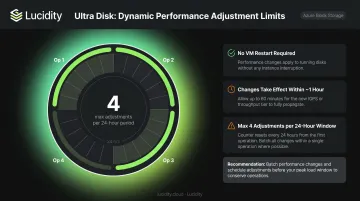
- Changes take effect within approximately one hour — no VM restart required
- Verify the new values using
az disk showbefore assuming the change is live - You're limited to four performance resize operations per 24-hour period, so batch changes together or schedule them before expected peak load windows
Common Azure Ultra Disk Configuration Issues and Fixes
Unable to Attach Ultra Disk — ultraSSDEnabled Not Set
Problem: Disk attachment fails because the VM's additionalCapabilities.ultraSSDEnabled property is not set to true. In Kubernetes environments, this surfaces as a pod stuck in ContainerCreating. In ARM deployments, it appears as a deployment failure.
Fix:
- Stop and deallocate the VM
- Run
az vm update --resource-group myRG --name myVM --set additionalCapabilities.ultraSSDEnabled=true - Restart the VM
- Re-attempt the disk attachment
Deployment Fails Due to Zone or Region Mismatch
Problem: Disk creation or VM deployment fails with a resource unavailable or invalid zone error, even though Ultra Disk appears supported in the target region.
Fix: Ultra Disk availability is zone-specific — not every availability zone in a supported region carries Ultra Disk support.
- Re-run the
az vm list-skuszone-availability query - Identify a zone where
UltraSSDAvailableis confirmed - Redeploy into that specific zone
Disk Performance Below Provisioned Values
Problem: Benchmarked IOPS or throughput falls well short of what you provisioned, even though the disk appears healthy and attached.
Fix: The VM has aggregate storage limits that cap performance across all attached disks — if that ceiling is lower than your combined provisioned IOPS/throughput, the VM throttle wins regardless of disk configuration.
- Check your VM size's storage scalability targets in the Azure documentation
- Compare that ceiling against the total provisioned IOPS/throughput across all attached disks
- Either upgrade the VM size to one with a higher storage ceiling, or redistribute workloads across multiple VMs
Best Practices for Managing Azure Ultra Disk at Scale
Right-Size IOPS and Throughput From Day One
Ultra Disk bills independently for capacity, IOPS, and throughput — every hour, regardless of actual I/O activity. Over-provisioning any dimension adds direct cost with no performance benefit.
The 2025 flexible provisioning model introduces 1 GiB billing granularity and a 100 IOPS minimum floor, which reduces waste on smaller disks. Even so, the rule is simple: provision what your workload actually needs, not what the disk theoretically supports.
For teams managing many Ultra Disk volumes across environments, maintaining visibility into IOPS and throughput consumption versus provisioned values is difficult with native Azure tooling alone. Lucidity's Lumen continuously monitors disk performance metrics — IOPS, throughput, latency, and cost trends — across Azure environments and surfaces evidence-backed recommendations when disks are over-provisioned.
That persistent visibility is what stops provisioning drift from compounding across a fleet of high-cost Ultra Disk volumes.
Plan Dynamic Performance Scaling in Advance
The four-adjustments-per-24-hour limit isn't a problem until it is. If a performance incident triggers an ad hoc IOPS increase, and you've already burned through your daily adjustment quota on unrelated changes, you're out of options until the window resets.
Define performance tiers before you need them:
- Baseline: Normal operating parameters
- Peak: Scheduled high-load periods (batch jobs, reporting windows)
- Burst: Unplanned demand spikes requiring emergency headroom
Document the business trigger for each tier and the exact IOPS/throughput values. This turns a reactive scramble into a documented runbook.
Configure Backup, DR, and Monitoring at Deployment
The same discipline that applies to performance planning applies here — these must be configured at deployment, not patched in later:
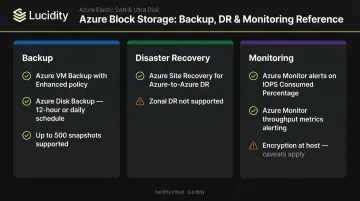
- Azure VM Backup: Supported for Ultra Disk with Enhanced policy. Note that file-level restore is not currently supported for machines using Ultra Disks.
- Azure Disk Backup: Supported; backup schedule limited to 12-hour or daily frequency, with up to 500 incremental snapshots per disk.
- Azure Site Recovery: Supports Azure-to-Azure DR for Ultra Disks; zonal DR is not supported.
- Encryption at host: Supported with caveats — 512E Ultra Disks must have been created after May 13, 2023, and disks that had Azure Disk Encryption enabled are excluded.
- Azure Monitor alerts: Configure alerts on
Data Disk IOPS Consumed Percentageand throughput consumption metrics so teams receive notification before workloads approach provisioned limits.
Frequently Asked Questions
Which Azure storage options are persistent?
Azure's persistent managed disk options are Ultra Disk, Premium SSD v2, Premium SSD, Standard SSD, and Standard HDD. These contrast with ephemeral options like local NVMe and temporary disks attached to certain VM sizes, which do not persist data across VM deallocations.
What is the durability of Azure managed disks?
Azure managed disks use LRS, storing three copies of data within the same availability zone. Azure issues a write acknowledgment only after all three replicas confirm the write. This makes them appropriate for business-critical workloads within a zone, but not a substitute for cross-zone replication.
Can Azure Ultra Disk be used as an OS disk?
No. Ultra Disk is supported only as a data disk and cannot be used as an OS disk. It also cannot be used with Azure Compute Gallery.
What VM sizes are compatible with Azure Ultra Disk?
Supported VM families include General Purpose, Memory Optimized, FSv2, M-series, LSv2/Lsv3, NCv3, ND-series, and others. Compatibility depends on region and availability zone, so always run the az vm list-skus zone-availability query for your target region before provisioning.
How many times can you adjust Ultra Disk performance per day?
Ultra Disk IOPS and throughput can be adjusted up to four times within any 24-hour period without detaching the disk or restarting the VM. Changes take effect within approximately one hour of the update request.
Does Azure Ultra Disk support Zone Redundant Storage (ZRS)?
No. Ultra Disk supports LRS only, storing data within a single availability zone. Teams requiring cross-zone redundancy must implement application-level replication or use Azure Site Recovery.