Introduction
According to Flexera's 2026 State of the Cloud Report, organizations waste an estimated 29% of their public cloud spend — nearly a third of every dollar allocated to infrastructure. For a team running a $2M Azure budget, that's roughly $580,000 generating no business value.
The waste doesn't announce itself. It accumulates slowly: a VM that was never resized after a migration, a managed disk still billing months after its VM was deleted, a dev environment that ran all weekend because nobody turned it off. By the time it shows up on the invoice, the damage is already done.
The root cause is almost always the same: teams lack the visibility and governance to catch inefficiencies before they compound. This guide covers 7 actionable strategies for cutting Azure spend — from pre-deployment decisions and day-to-day operational discipline to the architectural choices that determine your baseline costs.
Key Takeaways
- Azure waste builds quietly through idle VMs, orphaned disks, and poor governance — and rarely shows up until the monthly bill hits
- Compute and storage are the two biggest controllable cost drivers; both respond to commitment pricing and right-sizing
- Quick wins: shut down idle resources, right-size VMs with Azure Advisor, delete unattached disks
- Commit reserved pricing to predictable workloads; use Spot VMs for interruptible batch jobs
- Sustained savings require tagging governance, budget alerts, and dedicated tooling — a one-time audit won't hold the line
How Azure Costs Typically Build Up
Azure's pay-as-you-go model bills every provisioned resource continuously — whether it's actively serving traffic or sitting idle. Small inefficiencies across dozens of services compound quickly.
The compounding nature is what catches teams off guard. A VM over-provisioned by one size tier doesn't feel expensive in isolation. Multiply that across 50 VMs running for 12 months and the gap becomes significant.
Add unattached disks, over-allocated storage, and dev environments that never shut down on evenings and weekends, and what you're looking at is a structural waste problem — not a collection of isolated mistakes.
Three patterns drive most of the undetected accumulation:
- Orphaned managed disks that continue billing long after their VMs are deleted
- Development and test environments provisioned at peak capacity and left running indefinitely
- Storage defaulting to premium tiers regardless of how frequently the data is accessed
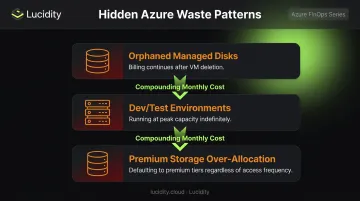
Most Azure cost waste stays hidden until someone audits. By that point, the unused resources have often been running for months.
Key Cost Drivers for Azure
Compute
VM costs are the dominant line item on most Azure bills. The total depends on four variables: the SKU selected, how long it runs, whether on-demand or committed pricing applies, and — for Windows workloads — the Microsoft licensing surcharge embedded in the VM price.
The root cause is over-provisioning. Teams routinely select a "safe" VM size to avoid under-performance risk, then never revisit the decision. Microsoft's own guidance confirms that idle VMs are among the biggest cost drivers in cloud, with Azure Advisor flagging shutdown candidates where P95 CPU utilization stays below 3%.
Storage
Storage costs are easier to underestimate than compute because the billing model is less intuitive. Azure charges for provisioned disk size, not actual data written — a 200 GiB Standard SSD rounds up to the E15 (256 GiB) rate regardless of how full the disk is.
Disks are not deleted when VMs are deleted. Azure preserves them by default to prevent accidental data loss, which means every disk attached to a decommissioned VM keeps billing indefinitely unless someone explicitly removes it.
Across 600+ storage assessments covering over 100 petabytes of enterprise data, Lucidity consistently finds average disk utilization sitting around 30% — meaning organizations are paying for roughly three times the storage they actually use.
Governance Gaps
Two governance failures quietly inflate Azure bills beyond compute and storage:
- Unbudgeted egress: Network traffic between regions generates charges most teams never forecast, surfacing only when the invoice arrives.
- Missing resource tags: Without tagging, cost accountability disappears — no team owns the spend, so overruns go unnoticed until month-end.
Cost-Reduction Strategies for Azure
The 7 strategies below are organized by where the cost lever sits: at the decision point, during operations, or in the surrounding architecture.
Strategies That Reduce Costs by Changing Decisions
Upfront choices — made before workloads are provisioned or committed — lock in savings at the source.
Tip 1 — Commit to Reserved Instances or Savings Plans for predictable workloads
For workloads with stable, predictable demand, paying on-demand is expensive by design. Two commitment options exist:
| Option | Max Savings vs. Pay-as-You-Go | Flexibility |
|---|---|---|
| Reserved VM Instances | Up to 72% | Tied to specific VM, region, and term |
| Azure Savings Plans | Up to 65% | Applies across eligible compute services via hourly spend commitment |
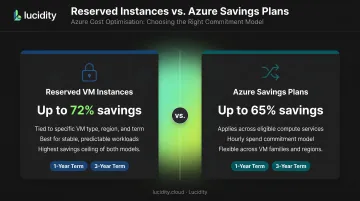
Azure Reserved VM Instances work best when the workload's type, size, and region are unlikely to change. Savings Plans suit teams that need flexibility across different VM families or regions. Both are available on 1- or 3-year terms, with 3-year commitments delivering deeper discounts.
The tradeoff is real: committing to reserved pricing reduces flexibility. Run utilization history through Azure Cost Management before committing to confirm the workload is actually stable.
Tip 2 — Right-size VMs before provisioning, not after
Azure Advisor analyzes CPU, memory, and network activity over a configurable lookback period (default 7 days, up to 90) and surfaces two recommendation types: resize to a cheaper SKU when current load fits, or shut down entirely when utilization signals no meaningful activity.
Shutdown criteria are P95 max CPU below 3% and outbound network below 2% over the lookback window. Those thresholds catch obvious idle resources but miss VMs running at low utilization with occasional spikes — always validate against a full 30-90 day history before acting on production workloads.
Right-sizing before provisioning prevents waste from appearing in the first place. Right-sizing production VMs mid-cycle carries performance risk if the utilization window doesn't capture peak demand.
Tip 3 — Apply Azure Hybrid Benefit to reuse existing licenses
Organizations with active Software Assurance for Windows Server or SQL Server can apply those licenses to Azure VMs and pay only the base compute rate. The Microsoft licensing surcharge is removed — effectively bringing Windows VM costs to the Linux rate.
Microsoft cites average savings of 36% for Windows Server VMs under Azure Hybrid Benefit. Combined with Reserved Instances, the total discount can reach up to 80% versus pay-as-you-go. The benefit also extends to PaaS services including Azure SQL Database and Azure SQL Managed Instance.
If your organization holds qualifying licenses with active Software Assurance and hasn't applied this benefit, check the Azure Hybrid Benefit portal — applying it requires no infrastructure changes and takes effect on the next billing cycle.
Strategies That Reduce Costs by Changing How Azure Is Managed
Operational discipline — maintaining visibility and catching drift early — is what separates teams that control their Azure bill from those reacting to it.
Tip 4 — Identify and eliminate idle and orphaned resources, starting with storage
Idle VMs and orphaned managed disks are the most common sources of invisible Azure spend. The VM problem is visible — Azure Advisor flags obvious idle instances. The disk problem is harder to catch.
When a VM is deleted, its managed disks persist and continue billing. Nothing in the default Azure workflow forces disk cleanup, and most teams don't audit for it regularly. The result: orphaned storage accumulating charges for months or years after the VM it supported was decommissioned.
Native Azure tools surface unattached disks but miss subtler idle states. Lucidity's Lumen product identifies four distinct categories of idle Azure disks:
- Unattached — disks with no VM association
- Reserved — disks allocated but not actively used
- Unmounted — disks attached to a VM but not mounted at the OS level
- Zero-I/O — disks with no read/write activity over a defined period
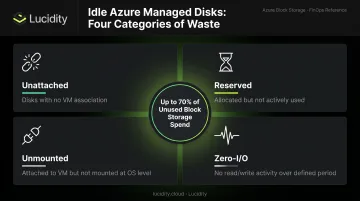
Together, these four categories can represent up to 70% of unused block storage spend. Lumen surfaces each with full context — disk age, attachment state, type, and usage history — so teams can make safe cleanup decisions. One-click deletion from the dashboard is auditable and reversible, requiring no scripts or infrastructure changes.
Tip 5 — Enforce resource tagging and set proactive budget alerts
Without tags, cost accountability doesn't exist. You can't identify which team, project, or environment is driving a line item, which means no one has the incentive or ability to act on it.
Two mechanisms work together here:
- Azure Policy enforces mandatory tagging at deployment, preventing untracked resources from entering the environment at all. Policy definitions can require tags by team, environment, project, or cost center — and block resource creation when tags are missing.
- Azure Budget Alerts send notifications when actual or forecasted spend crosses defined thresholds, catching overruns before they compound across a full billing cycle.
Start with Azure Policy. Retroactively tagging an untagged environment is a weeks-long cleanup project; blocking untagged deployments at creation costs minutes to configure.
Strategies That Reduce Costs by Changing the Context Around Azure
In these cases, the surrounding configuration — not the resource itself — is what drives the cost.
Tip 6 — Use Spot VMs and auto-scaling for elastic or fault-tolerant workloads
Azure Spot VMs provide access to spare Azure capacity at discounts of up to 90% versus pay-as-you-go. The tradeoff: Azure can evict Spot instances with 30 seconds' notice when it needs capacity back.
That constraint makes Spot VMs unsuitable for latency-sensitive production workloads. They're well-suited for:
- Batch processing jobs
- Large-scale stateless applications
- Development and testing environments
- Any workload that can checkpoint and resume on eviction
Pair Spot VMs with VM auto-scaling for production environments. Auto-scaling ensures production instances scale down during off-peak periods rather than running at peak capacity around the clock — eliminating the cost of capacity sitting idle between demand spikes.
Tip 7 — Align blob storage tiers to actual data access patterns
Azure Blob Storage offers four access tiers with meaningfully different cost structures:
| Tier | Best For | Minimum Retention | Access Cost |
|---|---|---|---|
| Hot | Frequently accessed data | None | Lowest |
| Cool | Infrequent access | 30 days | Higher than Hot |
| Cold | Rarely accessed | 90 days | Higher than Cool |
| Archive | Long-term retention, offline | 180 days | Highest (+ rehydration up to 15 hrs) |
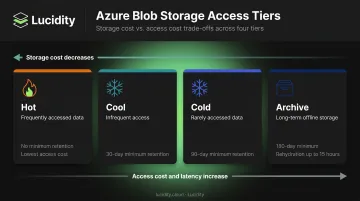
Most organizations default everything to Hot and pay a storage premium for data that's rarely or never accessed. Moving infrequently accessed data to Cool, Cold, or Archive reduces per-GB storage costs — though the tradeoff is higher access costs and retrieval latency for cooler tiers.
The manual version of this is tedious at scale. Azure Blob lifecycle management policies automate tier migration based on creation time, last modified time, or last access time — once configured, tier migration runs automatically with no ongoing maintenance.
Conclusion
Azure costs grow from three distinct sources: provisioning decisions, operational drift, and architecture choices. Reducing them means targeting the right lever for each — not cutting across the board.
The 7 strategies above span that full range. Reserved Instances and Hybrid Benefit address structural overspend in procurement. Right-sizing and idle resource cleanup address operational drift. Spot VMs, auto-scaling, and storage tiering address architectural context. Each lever works differently, and applying the wrong one (over-trimming a production VM, for example) creates new problems.
Effective Azure cost management is continuous. Workload requirements shift, teams spin up new resources, and storage accumulates silently. Organizations that sustain savings build visibility and governance into daily operations — not just a quarterly audit. Tools like Lucidity's Lumen help teams maintain that ongoing oversight specifically for storage: tracking utilization, surfacing idle disks, and recommending tier changes before waste compounds.
Frequently Asked Questions
How do I avoid getting charged after Azure Free?
Azure's free account gives you a $200 credit for 30 days, 12 months of popular services at no cost, and 65+ always-free services. Once those limits are exceeded or the 12-month window closes, billing switches to pay-as-you-go rates. Set Azure Budget Alerts before the trial ends and audit active services to catch anything transitioning to paid.
What is the fastest way to reduce Azure costs immediately?
Open Azure Advisor and work through its cost recommendations: shut down VMs flagged as idle, delete unattached managed disks, and act on rightsizing suggestions for over-provisioned instances. These actions require no architectural changes and typically show up in the next billing cycle.
How much can I save with Azure Reserved Instances?
Reserved Instances offer up to 72% savings versus pay-as-you-go for stable, predictable workloads. Savings increase with 3-year commitments and compound further when combined with Azure Hybrid Benefit, where total discounts can reach up to 80%.
What are the most common hidden costs in Azure?
Several charges tend to go unnoticed until they compound: data egress fees between regions, managed disks that keep billing after VM deletion, stopped-but-allocated VMs still accruing storage and IP charges, and Windows Server licensing fees embedded in VM pricing.
How do I identify unused Azure resources?
Azure Advisor and Azure Cost Management surface underutilized VMs and obvious orphaned resources. For storage specifically, dedicated tools like Lucidity's Lumen identify idle disks across four categories (unattached, reserved, unmounted, and zero-I/O) that native Azure dashboards don't expose, accounting for up to 70% of unused block storage spend.
What is Azure Advisor and how does it help reduce costs?
Azure Advisor is a free, built-in recommendation engine that analyzes your usage data and surfaces rightsizing suggestions, idle resource shutdowns, and Reserved Instance purchase candidates. It's the right starting point for any Azure cost review, though for storage-specific waste, it covers only the most visible cases.