Azure Cost Management's budgets and cost alerts are the native mechanism to catch overspend before it becomes a line-item problem. Set up correctly, they give teams early warning signals across the billing cycle — not just a receipt after the fact.
This guide covers the exact steps to configure Azure budgets and cost alerts, the permissions you need first, the parameters that affect alert accuracy, and the mistakes that quietly undermine most setups.
Key Takeaways
- Azure Budgets set a spending threshold and reset automatically each period — they notify but do not stop spending
- Native alert types include budget alerts, credit alerts (EA only), and department spending quota alerts (EA only); Azure Monitor adds anomaly detection
- Contributor or higher is required to create budgets; Readers can only view them
- Configure both actual cost and forecasted cost thresholds in a single budget for layered early warning
- Alerts flag the problem, but fixing the underlying waste — idle disks, overprovisioned storage — requires a separate remediation step
What You Need Before Setting Up Azure Budgets and Cost Alerts
Permissions and Account Type
Before touching anything in Cost Management, confirm two things:
Role requirements:
- Owner — can create, modify, or delete budgets
- Contributor / Cost Management Contributor — can create and manage their own budgets, modify amounts on budgets created by others
- Reader / Cost Management Reader — view only; cannot create or edit
The scope matters too. You need the appropriate role at the subscription, resource group, or management group level where you plan to create the budget. Also note: new subscriptions may require up to 48 hours before Cost Management features become available.
Account type compatibility:
| Alert Type | EA | MCA | Pay-As-You-Go |
|---|---|---|---|
| Budget Alerts | ✅ | ✅ | ✅ |
| Credit Alerts | ✅ | ❌ | ❌ |
| Department Quota Alerts | ✅ | ❌ | ❌ |
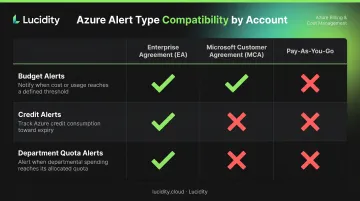
Identify your account type first — credit and department quota alerts are EA-exclusive, so assuming availability can lead to gaps in your alerting setup.
Resource Tagging Strategy
With your account type confirmed, the next prerequisite is tagging. Budgets are only as accurate as the data behind them — without consistent tags, filtered budgets produce unreliable results: costs land on the wrong team, untagged resources create blind spots, and alerts become impossible to act on.
Three tag states affect budget accuracy:
- Tags not supported — these resource types are excluded from any tag-based filter, so their costs appear under no team's budget
- Tags not available — these services omit tags from usage data entirely, making filtered views incomplete even if tags were applied
- Untagged — resources your team missed; these costs surface in catch-all buckets rather than the budgets that own them
Azure Policy can enforce mandatory tags before resources are deployed — catching gaps at creation rather than after costs have already been misattributed for weeks.
How to Set Up Azure Budgets in the Azure Portal
The portal covers most use cases. For programmatic creation, PowerShell, Azure CLI, ARM templates, and Terraform are all supported.
Step 1: Navigate to the Correct Scope
Go to Cost Management + Billing in the Azure portal, then use the Scope selector to choose where the budget applies — subscription, resource group, or management group.
The scope determines which costs are evaluated. One important constraint: management group budgets require all subscriptions within that group to operate in a single currency. Multi-currency scopes will produce missed or inaccurate alerts.
Step 2: Create a New Budget and Set the Amount
Select Budgets from the left menu, then click Add. Configure:
- Budget name — something identifiable by scope and team
- Budget amount — the dollar threshold for the period
- Reset period — Monthly, Quarterly, or Annually
- Start date — first day of the current month
- Expiration date — budgets auto-reset each period at the same amount; when the expiration date is reached, the budget is automatically deleted
Step 3: Apply Filters to Narrow Budget Scope
Filters let you restrict what the budget evaluates. Useful combinations:
- Resource group filter — isolate a specific team or project
- Service filter — target virtual machines, storage, or other specific services
- Tag filter — align with your tagging strategy for team-level accountability
- Publisher Type: Azure + Charge Type: Usage — isolates first-party consumption from Marketplace purchases and reservation charges
Step 4: Configure Alert Thresholds
On the Alerts step, add at least one threshold. Two key decisions to make:
Alert type:
- Actual cost — fires when real accrued charges reach the defined percentage
- Forecasted cost — fires when Azure's projection indicates the budget will be exceeded before the period ends
Recommended threshold configuration:
| Threshold | Type | Purpose |
|---|---|---|
| 50% | Actual | Early awareness |
| 80% | Forecasted | Advance warning with time to act |
| 90% | Actual | Urgent — period is nearly blown |
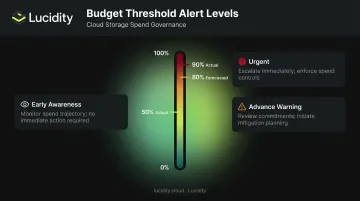
Each threshold requires at least one recipient email address. Add azure-noreply@microsoft.com to your approved senders list. Email notifications typically send within one hour of threshold detection.
Step 5: Connect an Action Group (Optional)
For subscription and resource group scope budgets, you can attach an Action Group to trigger automated responses when a threshold is crossed.
Action Groups support:
- Email, SMS, voice, and Azure app push notifications
- Azure Automation Runbooks
- Azure Functions and Logic Apps
- Webhooks and secure webhooks
- Event Hubs and ITSM connectors
A common pattern: connect a budget threshold to a Logic App that creates a ticket or posts to a Teams/Slack channel. Configure Action Groups in Azure Monitor before setting up the budget — they must exist before you can select them during setup.
Understanding the Four Azure Cost Alert Types
Cost alerts are generated automatically when budget thresholds are met. You can also view and manage all active alerts from the Cost Alerts page within Cost Management.
Here's a quick reference before diving into each type:
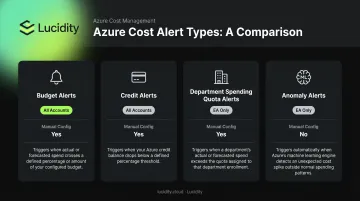
| Alert Type | Availability | Manual Config Required? | Trigger Condition |
|---|---|---|---|
| Budget Alerts | All account types | Yes | Actual or forecasted spend hits budget threshold |
| Credit Alerts | Enterprise Agreement only | No | 90% or 100% of prepayment balance consumed |
| Department Spending Quota | Enterprise Agreement only | Yes (EA portal) | Department spend hits 50% or 75% of quota |
| Anomaly Alerts | Azure public cloud (subscription scope) | Yes | ML model detects spend outside expected range |
Budget Alerts
The most commonly used type. Generated when actual or forecasted spend reaches a configured threshold in any budget. Alerts appear in the Cost Alerts dashboard and are sent to the email addresses set during budget creation.
Status is either Active or Dismissed — dismissed alerts can be reactivated if the underlying spend condition persists.
Credit Alerts (Enterprise Agreement Only)
Automatically generated at 90% and 100% of the Azure Prepayment (monetary commitment) balance — no manual configuration needed. Sent to account owners and visible in the Cost Alerts dashboard. Not available for MCA or Pay-As-You-Go accounts.
Department Spending Quota Alerts (Enterprise Agreement Only)
Triggers when a department's actual spend reaches a configured percentage of its assigned quota — common thresholds are 50% or 75%. Quotas are set in the EA portal; notifications go to department owners. This is useful for enforcing departmental accountability in large organizations without subscription-level budgets.
Anomaly Alerts (via Azure Monitor)
Unlike the other three types, anomaly alerts use machine learning rather than fixed thresholds. The model analyzes 60 days of historical usage using a deep learning algorithm called WaveNet, then flags spend that falls outside the expected confidence interval.
Alert rules are created from the Cost Analysis section and are currently available only at subscription scope in the Azure public cloud. This makes them particularly valuable for catching sudden, unexpected cost spikes — the kind that a percentage-based budget alert would fire on too late.
Key Parameters That Affect Budget and Alert Accuracy
A budget is only as useful as its configuration. The default settings in Azure Cost Management work for basic visibility — but three parameters in particular determine whether your alerts fire at the right time, for the right reason.
Budget Scope Selection
A subscription-level budget gives overall visibility but can't tell you which team or workload drove an overage. When an alert fires, the investigation begins , and that delay costs time.
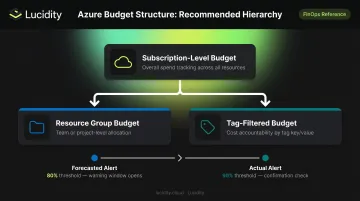
The better approach: a hierarchy of budgets.
- One subscription-level budget for overall tracking
- Additional budgets at resource group or tag scope for team-level accountability
This way, when the subscription budget alerts, you already have granular budgets that can point directly to the source.
Reset Period and Billing Alignment
Calendar month reset periods may not align with actual billing cycles for MSDN, Visual Studio, or Pay-As-You-Go subscriptions. These account types can use Billing month, Billing quarter, or Billing year as reset options instead, which ensures budget evaluation aligns with the actual invoice window.
Quarterly and annual budgets divide the total amount evenly across months. When spend is front-loaded — common with large upfront provisioning events — alerts can fire earlier than expected even when full-period spend is on track.
Forecasted vs. Actual Alert Thresholds
Actual-only alerts are reactive by definition: the alert fires after charges have already accrued. Forecasted alerts use Azure's projection model to warn teams when spend is trending toward a breach before the period closes.
The practical setup pairs both types:
- Forecasted alert at 80% — gives teams time to adjust before the overage is locked in
- Actual alert at 90% — confirms whether the corrective action held
Together, they create a warning window instead of a single last-chance notification.
Common Mistakes When Configuring Azure Budgets and Cost Alerts
Setting Alert Thresholds Too High or Too Few
A single alert at 100% means the notification arrives after the budget is already blown. Azure supports up to five thresholds per budget (from 0.01% to 1000% of the budget amount). Use at least three: a mid-period awareness threshold, a forecasted warning, and a near-limit actual alert.
Routing Alerts to the Wrong Recipients
Budget alerts sent only to a finance inbox or a shared distribution list often go unread. The people who receive alerts should be the people with the authority and context to act — engineering leads, DevOps teams, and FinOps practitioners, not just finance. Action Groups can route alerts to Slack, Teams, or ITSM ticketing systems, which improves response rates considerably.
Creating Only One Subscription-Level Budget
A single top-level budget tells you that you're over — not why or where. Without resource group or tag-filtered budgets, an alert triggers an investigation rather than an action. Structure budgets to align with teams, projects, or environments so there's enough context to act without a manual audit.
Treating Alerts as the End of Cost Management
According to CIO's 2025 research, 31% of IT leaders believe their organizations waste more than half of their cloud spend. Budget alerts identify when spending crosses a threshold. They do nothing about the resources driving that spend.
Take overprovisioned Azure managed disks as a concrete example. An alert fires at 90% of budget. The team investigates and finds storage volumes running at 25–30% utilization. The alert was accurate, but now someone has to manually identify which disks to right-size, determine safe resize parameters, and execute changes without disrupting workloads.
That process takes time. In the next billing period, the same pattern repeats.
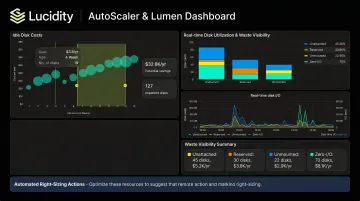
This is the gap that tools like Lucidity AutoScaler address. Rather than waiting for a cost alert to trigger a manual response, AutoScaler continuously right-sizes Azure managed disks in real time — expanding when workloads need it, shrinking when they don't, with zero downtime.
Lucidity's Lumen product adds visibility into idle disks across four categories: unattached, reserved, unmounted, and zero-I/O. These are disks that native Azure dashboards don't surface as a grouped waste category, yet they often represent the largest share of wasted spend.
Cost alerts are an essential first step. Acting on what they reveal is where the actual savings happen.
Frequently Asked Questions
What are the three types of Azure cost alerts?
The three native types are budget alerts (EA, MCA, and Pay-As-You-Go), credit alerts (EA only, auto-triggered at 90% and 100% of Prepayment balance), and department spending quota alerts (EA only, triggered at configured quota percentages). Azure Monitor also supports anomaly alerts using machine learning detection as an additional option.
Can Azure budgets automatically stop or limit spending when a threshold is reached?
No — Azure budgets are notification-only. Resources are not paused, stopped, or restricted when a threshold is breached. To automate a response, attach an Action Group to the budget and configure it to trigger an Azure Function, Logic App, or webhook that executes remediation steps.
How often does Azure evaluate budgets against actual costs?
Cost and usage data is typically available within 8–24 hours, and budgets are evaluated against that data every 24 hours. Email notifications are sent within approximately one hour of the evaluation detecting a threshold breach. Note that Pay-As-You-Go cost data can take up to 72 hours to appear.
What permissions are required to create Azure budgets and cost alerts?
Owner, Contributor, or Cost Management Contributor role is required at the relevant scope to create and manage budgets. Reader and Cost Management Reader roles can view existing budgets but cannot create or modify them.
What is the difference between actual cost alerts and forecasted cost alerts?
Actual cost alerts trigger when real accrued spend hits the defined budget threshold — confirming charges already incurred. Forecasted alerts are different: they fire when Azure's projection model predicts an overrun before the period ends, giving teams time to act before costs finalize.
How do I set up a budget alert for a specific resource group in Azure?
Navigate to the target resource group in the Azure portal, then select Budgets from the Cost Management section in the left menu. Click Add and follow the standard budget creation steps — the scope is automatically set to that resource group, so all thresholds and alerts apply only to costs within it.