The tricky part isn't understanding what a connection string does — it's knowing which format to use, and where it's safe to store it. The right answer changes depending on whether you're using an account key, a SAS token, a custom endpoint, or a local development emulator. A single misconfigured field can cause silent authentication failures or, worse, expose credentials to unauthorized access.
This guide walks through each configuration method step by step, breaks down what every component in the string actually does, and covers secure storage practices, common mistakes, and how to debug the errors you're most likely to encounter.
Key Takeaways
- A connection string bundles the protocol, account name, credentials, and endpoint into one string your app uses to authenticate at runtime.
- Four main approaches: account key (full access), SAS token (scoped access), Azurite emulator (local dev), and explicit/custom endpoint.
- Never hardcode connection strings: store them in environment variables, excluded config files, or Azure Key Vault.
- Format errors (wrong suffix, expired SAS, missing fields) cause authentication failures that are hard to debug without understanding each component.
How to Configure an Azure Blob Storage Connection String
The method you choose depends on your use case — full account access vs. scoped access, production vs. local development, standard Azure vs. sovereign cloud. All four methods follow the same pattern: locate credentials in the Azure portal, then format them according to the structure that matches your scenario.
Method 1: Using a Storage Account Key
This is the standard approach for most application integrations.
Where to find it: Azure Portal → your Storage Account → Security + networking → Access keys. The connection string is pre-formatted and ready to copy.
Format:
DefaultEndpointsProtocol=https;AccountName=myAccountName;AccountKey=myAccountKey;EndpointSuffix=core.windows.net
Azure generates two 512-bit storage account access keys when a storage account is created. The portal exposes both (primary and secondary), specifically to support zero-downtime key rotation.
A few things to keep in mind:
- Always use
httpsinDefaultEndpointsProtocolfor production - This method grants full access to all storage services in the account; treat it like a root credential
- Both keys work identically; use the secondary for rotation workflows
Method 2: Using a Shared Access Signature (SAS) Token
SAS tokens let you grant time-limited, scoped access without handing over the full account key.
Where to find it: Azure Portal → your Storage Account → Shared access signature. Select specific permissions (read, write, list), allowed services, resource types, and an expiration window before generating.
Format:
BlobEndpoint=https://storagesample.blob.core.windows.net;SharedAccessSignature=sv=...&sp=rwd
Microsoft's SAS documentation describes how a SAS gives you precise control over which resources, permissions, and time windows are permitted:
- Only include the
BlobEndpointif you're accessing Blob storage exclusively - Set a realistic expiration window — an indefinite SAS is as dangerous as an account key
- Microsoft recommends a user delegation SAS where possible, as it's secured with Microsoft Entra credentials rather than the account key
Method 3: Connecting to the Azurite Emulator (Local Development)
Azurite is Microsoft's local Azure Storage emulator. For local development, use the shortcut string:
UseDevelopmentStorage=true
That single value maps to the full emulator connection string:
DefaultEndpointsProtocol=http;AccountName=devstoreaccount1;AccountKey=Eby8vdM02xNOcqFlqUwJPLlmEtlCDXJ1OUzFT50uSRZ6IFsuFq2UVErCz4I6tq/K1SZFPTOtr/KBHBeksoGMGw==;BlobEndpoint=http://127.0.0.1:10000/devstoreaccount1;
The account name (devstoreaccount1) and key are fixed, publicly documented values used by all Azurite installations. Azurite's Blob service listens on port 10000 by default. This configuration uses HTTP by default — keep it strictly for local development.
Method 4: Using an Explicit or Custom Endpoint
If your blob storage is mapped to a custom domain, or you're operating in a sovereign cloud environment, specify endpoints explicitly:
Format:
DefaultEndpointsProtocol=https;BlobEndpoint=http://www.mydomain.com;AccountName=storagesample;AccountKey=<key>
Sovereign cloud environments require endpoint-specific suffixes:
- Azure China (21Vianet): Add
EndpointSuffix=core.chinacloudapi.cn - Azure Government: Use
blob.core.usgovcloudapi.netas the Blob endpoint domain
Omitting a mapped endpoint from the string will silently prevent your code from reaching data at that endpoint, and the resulting error often won't point to the connection string as the cause.
Connection String Formats: Key Components Explained
Understanding what each field does makes misconfiguration errors much easier to catch and fix.
| Component | Role |
|---|---|
DefaultEndpointsProtocol |
Specifies HTTP or HTTPS — always HTTPS in production |
AccountName |
Your storage account's unique name |
AccountKey |
A Base64-encoded 512-bit key used for Shared Key authorization |
EndpointSuffix |
Controls which Azure cloud is targeted |
SharedAccessSignature |
Replaces AccountKey in SAS-based strings |
BlobEndpoint |
Overrides the default blob endpoint for custom domains or emulators |
Endpoint suffix by cloud environment:
- Global Azure:
core.windows.net - Azure China (21Vianet):
core.chinacloudapi.cn - Azure Government:
core.usgovcloudapi.net
Using the wrong suffix causes connection failures that surface as authentication errors, making them hard to trace back to their actual source.
The authentication method itself also shapes the string's structure. In SAS-based connection strings, AccountKey is replaced by SharedAccessSignature, and you only include endpoints relevant to your use case — keeping the string shorter and more scoped.
How to Store and Protect Your Connection String
Storing a connection string in plaintext source code is one of the most common and consequential mistakes in Azure development. If that repository is public — or if credentials are leaked through any channel — an attacker gains full access to the storage account's data.
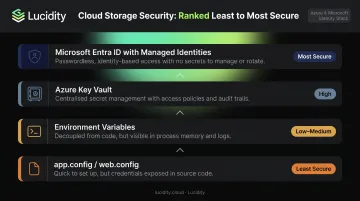
Recommended storage options, in order of security:
- Azure Key Vault — encrypts secrets at rest with access controlled via RBAC; supports automatic rotation policies; Microsoft's recommended approach for production workloads
- Environment variables — acceptable for non-containerized apps where the OS environment is secured; keeps credentials out of source code
- app.config / web.config AppSettings — workable at the application layer, but only if the file is excluded from version control via
.gitignore - Microsoft Entra ID with managed identities — the most secure option for Azure-hosted applications; eliminates stored credentials entirely by authenticating through the app's Azure identity and RBAC role assignments (such as Storage Blob Data Contributor)
Key rotation without downtime:
Azure Storage accounts have two access keys precisely for this reason. The safe rotation sequence is:
- Update your application to use the secondary key
- Regenerate the primary key in the portal
- Update your application to use the new primary key
- Regenerate the secondary key
With managed identities, there are no secrets to rotate or protect — making this the lowest-maintenance path for teams running workloads on Azure.
Common Mistakes When Configuring Azure Blob Storage Connection Strings
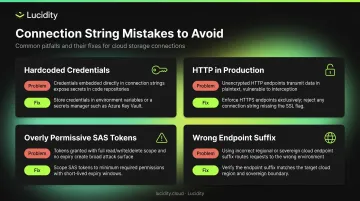
Most connection string problems trace back to four repeatable mistakes — and each one has a clear fix.
Hardcoded credentials: Committing account keys to source code exposes them the moment a repo goes public or history is leaked. GitHub's secret scanning detects
azure_storage_account_keyvalues, but detection doesn't undo exposure. Rotate both keys immediately.HTTP in production: When secure transfer is required, Azure rejects HTTP requests outright — no warning, just failure. The only valid use case for HTTP is Azurite local development. Everywhere else, use
https.Overly permissive SAS tokens: A token with all permissions, no expiration, and account-level scope is functionally equivalent to a full account key. Scope every token to the minimum required permissions, a specific resource type, and a defined expiration window.
Wrong endpoint suffix: Sovereign cloud accounts (Azure Government, China) will reject
core.windows.netconnections — but the error surfaces as a 403 authentication failure, not a routing error. If you're chasing unexplained 403s in a sovereign deployment, check the endpoint suffix before anything else.
Troubleshooting Azure Blob Storage Connection String Errors
Most failures fall into three categories: malformed strings, wrong credentials, and endpoint mismatches.
AuthenticationFailed / 403 Forbidden
The credentials are invalid, revoked, or expired. Check the following:
- Verify the account key in the portal under Access keys — if it was rotated after your string was written, it's stale
- Check whether Shared Key authorization has been disabled at the account level; if so, the account requires Microsoft Entra ID authentication instead
- For SAS tokens, verify the expiration date and that the token includes the permissions your code actually requires
ResourceNotFound / 404 on Container or Blob
This usually points to a naming or permissions issue, not a credential problem:
- Container names must be all lowercase, 3–63 characters — Azure enforces this
- Verify the blob path in your URI is correct
- For SAS-restricted tokens, confirm the token includes List permissions if your code is trying to enumerate blobs
Connection Refused / Timeout on Azurite
The emulator isn't running, or another process has taken its port. Check:
- Start Azurite before your application launches (via the VS Code extension or
azuriteCLI command) - Confirm port 10000 (Blob service) is not blocked by a local firewall or already occupied by another process
- If you're using
UseDevelopmentStorage=true, it maps to port 10000 by default — make sure nothing else is bound to it
Frequently Asked Questions
What is an Azure Blob Storage connection string?
A connection string is a formatted string containing everything an application needs to authenticate and connect to an Azure Storage account at runtime — the protocol, account name, credentials (key or SAS token), and service endpoint. It's read at startup and used for all subsequent storage requests.
Where do I find my Azure Blob Storage connection string in the Azure portal?
Navigate to your Storage Account → Security + networking → Access keys. Both the primary and secondary connection strings are pre-formatted and ready to copy. Either will work; use the secondary during key rotation.
What is the difference between a connection string and a SAS token?
An account-key connection string grants full access to all services in the storage account. A SAS token embedded in a connection string grants scoped, time-limited access to specific resources. For external integrations or short-lived access, SAS is the safer option: it limits the blast radius if credentials are compromised.
Is it safe to store an Azure Blob Storage connection string in an app.config file?
Only if the file is excluded from version control and the environment is secured. For production workloads, Azure Key Vault is the recommended approach. Never commit connection strings to any repository.
How do I update my connection string after rotating my storage account keys?
Rotate the secondary key first, update all connection strings referencing it, verify connectivity, then rotate the primary. Azure provides two keys specifically to support this zero-downtime pattern without an application restart.
Can I use managed identities instead of a connection string for Azure Blob Storage?
Yes, and it's Microsoft's recommended approach for Azure-hosted applications. Managed identities authenticate using the app's Azure identity via RBAC role assignments, eliminating the need to store or rotate credentials. No connection string required.