Introduction
Azure Blob Storage underpins a huge share of Azure infrastructure — logs, application data, backups, archives, and more all end up there. Storing data is only half the equation. Controlling who or what can access it determines whether that data stays secure.
Azure offers four distinct permission models, each with different trade-offs — and the wrong choice has real consequences:
- Over-expose data by picking a model that's too permissive
- Hand an application far more access than it needs by misconfiguring scope
- Cause integrations to fail silently through an incorrect App Registration setup
This guide breaks down all four access models, shows the exact steps to configure RBAC-based permissions via the Azure Portal and CLI, and highlights the key mistakes that trip up even experienced engineers.
Key Takeaways
- Azure Blob Storage supports four access models: RBAC (Microsoft Entra ID), Access Keys, Shared Access Signatures (SAS), and ABAC
- RBAC via Microsoft Entra ID is the recommended enterprise approach — assign roles like Storage Blob Data Reader or Storage Blob Data Contributor to service principals
- Permissions scope across four levels: subscription → resource group → storage account → container
- Tighter scope means a smaller blast radius if credentials are compromised
- Setup needs an App Registration, a client secret, a storage container, and an IAM role assignment
- Role assignments take up to 10 minutes to propagate — wait the full 10 minutes before troubleshooting
Azure Blob Storage Permission Models: What You Need to Know
Azure gives you four ways to control blob access. Choosing the right one upfront prevents costly rework later.
Azure RBAC with Microsoft Entra ID
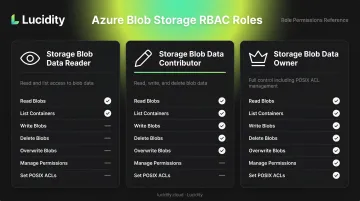
RBAC via Microsoft Entra ID is the recommended approach for enterprise environments. You assign built-in roles to users, groups, managed identities, or service principals:
| Role | Capabilities |
|---|---|
| Storage Blob Data Reader | Read and list containers and blobs |
| Storage Blob Data Contributor | Read, write, and delete blobs and containers |
| Storage Blob Data Owner | Full control, including POSIX ACL management |
Assign roles at a scope — subscription, resource group, storage account, or individual container. Container-level scoping is best practice: it follows least privilege and limits blast radius if credentials are compromised.
Access Keys
Every storage account has two auto-generated 512-bit access keys. They bypass RBAC entirely and grant full administrative access to the account — treat them like root passwords.
Microsoft recommends disabling Shared Key authorization (AllowSharedKeyAccess) in production. Keys provide no identity-level audit trail, and any user with Microsoft.Storage/storageAccounts/listkeys/action can use them to access all data regardless of RBAC assignments.
Shared Access Signatures (SAS)
SAS tokens are time-limited credential strings that grant specific permissions (read, write, delete, list) on a container or blob without exposing account keys. Three types exist:
- User delegation SAS — secured with Microsoft Entra credentials; Microsoft's preferred SAS type
- Service SAS — secured with the storage account key; scoped to one service
- Account SAS — secured with the storage account key; spans multiple services
SAS tokens are ideal for granting temporary external access, but service and account SAS types carry the same key-exposure risks as Access Keys.
Attribute-Based Access Control (ABAC)
ABAC adds conditional expressions on top of RBAC role assignments (it's not a separate credential type). Conditions evaluate resource attributes — blob tags, container name, blob path — and environment attributes like private link, subnet, and UTC time to make fine-grained access decisions.
This is most useful in large environments where role assignment sprawl becomes a management problem. Core ABAC features for Azure Storage reached general availability in 2022, with environment attributes following in April 2024.
How to Set Azure Blob Storage Permissions
The steps below cover RBAC-based setup using Microsoft Entra ID and App Registration. Before starting, confirm you have Owner or User Access Administrator rights on the target subscription.
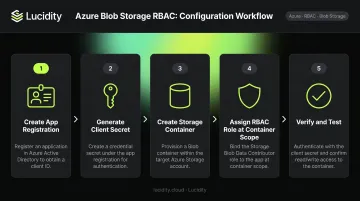
Step 1: Create an App Registration in Microsoft Entra ID
- Navigate to Microsoft Entra ID → App registrations → + New registration
- Provide a name, leave default settings, and click Register
- From the App Overview page, copy the Application (client) ID and Directory (tenant) ID — you'll need both for your application and later configuration steps
This creates the service principal that will be granted blob access.
Step 2: Create a Client Secret
- Under the App Registration, go to Certificates & secrets → + New client secret
- Set an expiration period (Microsoft recommends less than 12 months), add a description, and click Add
- Copy the secret value immediately — it will not be displayed again after leaving the page
Client secrets have a maximum lifetime of 24 months. Expired secrets cause authentication failures that often surface as misleading permission errors, making them an easy root cause to overlook. Document expiry dates and set calendar reminders, or better yet, implement automated rotation.
Step 3: Create a Storage Account and Container
- Go to Storage accounts → + Create; configure region, redundancy, and performance tier, then click Review + Create
- Inside the storage account, navigate to Containers → + Container
- Name the container and set the public access level — for enterprise use cases, select Private (no anonymous access)
Step 4: Assign an RBAC Role to the Container
Via Azure Portal:
- On the container page, select Access Control (IAM) → Add role assignment
- Choose Storage Blob Data Contributor (read/write) or Storage Blob Data Reader (read-only)
- Under "Assign access to," leave the default as User, group, or service principal
- Search for and select the App Registration created in Step 1, then click Save
Via Azure CLI:
az role assignment create \
  --role "Storage Blob Data Contributor" \
  --assignee <app-registration-client-id> \
  --scope "/subscriptions/<subscription-id>/resourceGroups/<resource-group>/providers/Microsoft.Storage/storageAccounts/<storage-account>/blobServices/default/containers/<container-name>"
Scope the assignment to the container path, not the storage account, to enforce least privilege.
Step 5: Verify and Test
After saving, wait up to 10 minutes for the assignment to propagate before testing.
Verify in the Portal: IAM → Role assignments tab → filter for the App Registration → confirm the role and scope are correct.
Test via CLI using Entra ID authentication:
az storage blob list \
  --account-name <storage-account-name> \
  --container-name <container-name> \
  --auth-mode login
A successful blob list response confirms the permissions are working. Always use --auth-mode login to ensure you're testing Entra ID auth, not key-based fallback.
Key Parameters That Affect Permission Outcomes
Even correct RBAC assignments can behave unexpectedly. Understanding these four variables prevents most real-world debugging detours.
Permission Scope Level
Assigning a role at the storage account level grants access to every container within it. Container-level scoping restricts access to a single container. The wrong choice in either direction causes problems:
- Too broad → unintended over-permissioning; larger blast radius if credentials leak
- Too narrow → 403 errors when the application needs to enumerate containers or reach more than one
Client Secret Expiration
Secrets expire silently. An expired secret triggers authentication failures that look identical to permission errors during debugging. Teams frequently chase the wrong problem for hours before checking expiration dates. Microsoft's guidance caps secrets at 24 months maximum, recommending under 12 months.
Authentication Method Priority in the Azure Portal
The Azure Portal checks whether the signed-in user has Microsoft.Storage/storageAccounts/listkeys/action. If they do, the portal defaults to Access Key authentication — not Entra ID. This means portal access can succeed even when RBAC is misconfigured, hiding a broken RBAC setup entirely. Test with --auth-mode login in the CLI rather than browsing through the portal.
Role Assignment Propagation Delay
RBAC changes take up to 10 minutes to take effect at storage account and container scope. At management group scope, data plane access can take several hours to update. Testing immediately after assignment produces false 403 errors that prompt unnecessary configuration changes.
Common Mistakes When Configuring Blob Storage Permissions
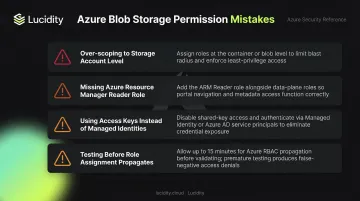
These four mistakes appear repeatedly, even in experienced teams:
- Over-scoping to the storage account level when only one container needs access — violates least privilege and expands blast radius unnecessarily
- Forgetting the Azure Resource Manager Reader role when users need portal visibility into blob containers — data-plane roles alone won't show containers in the Azure Portal; both control-plane and data-plane permissions are required
- Using Access Keys or connection strings in application code instead of Managed Identities or App Registrations: keys grant unrestricted account-level access and leave no audit identity trail
- Testing immediately after role assignment without waiting for propagation — leads teams to conclude the configuration is broken and make redundant, conflicting changes
Troubleshooting Azure Blob Storage Permission Issues
The three errors below cover the most common permission failures teams run into when configuring Azure Blob Storage access. For each one, the likely root cause and specific checks are listed.
403 AuthorizationPermissionMismatch
The assigned RBAC role doesn't cover the target container's scope, or the assignment hasn't propagated yet.
What to check:
- Verify the scope path in IAM → Role assignments matches the container path exactly
- Wait the full 10 minutes before retesting
- Check whether a
ReadOnlyresource lock is applied —ReadOnlyblocksList Keys(a POST operation) and can interfere with role assignments scoped to the storage account
Authentication Falls Back to Access Key Instead of Entra ID
The test identity has Microsoft.Storage/storageAccounts/listkeys/action, which causes Azure to prefer key-based auth and bypass the RBAC data role.
What to check:
- Remove the
listkeyspermission from the test identity, or configure the application to useDefaultAzureCredentialorClientSecretCredentialexplicitly DefaultAzureCredentialchains multiple credential sources in sequenceClientSecretCredentialuses tenant ID, client ID, and client secret directly without any fallback
401 Unauthorized After Secret Renewal
A new client secret was generated, but the old value is still hardcoded in application configuration or environment variables.
What to check:
- Update all references to the client secret in app settings, Key Vault, and CI/CD pipelines
- Confirm the Application (client) ID and Tenant ID haven't changed during App Registration updates; if the 401 persists after updating the secret, verify both values
Frequently Asked Questions
How do I allow access to Blob Storage in Azure?
Assign an Azure RBAC role — such as Storage Blob Data Contributor or Storage Blob Data Reader — to a user, group, managed identity, or App Registration via the Access Control (IAM) section of the storage container or account. Use either the Azure Portal or the az role assignment create CLI command to complete the assignment.
What are the access types in Blob Storage?
Azure Blob Storage supports four access types:
- Azure RBAC — role-based, identity-driven access via Microsoft Entra ID
- Access Keys — full-account, key-based access
- Shared Access Signatures — time-limited, scoped tokens
- ABAC — conditional role assignments based on resource, request, or environment attributes
Which Azure feature controls access permissions for storage services?
Azure Role-Based Access Control (Azure RBAC), integrated with Microsoft Entra ID, is the primary mechanism. It supports built-in roles scoped to subscription, resource group, storage account, or individual container. For more granular access, RBAC works alongside ABAC to apply conditional attribute-based policies.
What is the difference between Storage Blob Data Contributor and Storage Blob Data Owner?
Storage Blob Data Contributor allows read, write, and delete of blob data but not ACL management. Storage Blob Data Owner adds the ability to set POSIX-style access control lists (required for Data Lake Storage Gen2 hierarchical namespace scenarios).
How do I set Azure Blob Storage to allow public access?
Set the container's public access level to Blob (anonymous read for individual blobs) or Container (anonymous read for the container and its blobs). Microsoft disabled public access by default for new storage accounts in November 2023, so you must first enable AllowBlobPublicAccess at the account level before container-level settings take effect.
Can I restrict Blob Storage access to specific IP addresses?
Yes. Navigate to Storage account → Networking → Firewalls and virtual networks to allowlist specific IP ranges or Azure Virtual Networks. For fully private access, configure a Private Endpoint, which routes traffic over the Microsoft backbone. Note that creating a private endpoint alone does not block public endpoint access — disable public network access separately if required.