The default approach, connection strings with account keys, creates a persistent security risk. Orca Security documented an Azure exploitation path where attackers with leaked storage account keys could abuse Azure Functions to steal managed identity tokens, escalate privileges, and potentially reach remote code execution on VMs. Microsoft itself recommends disallowing Shared Key authorization wherever possible, stating that Microsoft Entra ID provides superior security over Shared Key authorization for Azure Storage.
Managed identity eliminates that exposure entirely — no keys to leak, rotate, or accidentally commit to version control.
This guide covers the exact steps to configure managed identity for Azure Blob Storage, how to pick the right identity type, and the mistakes that cause most post-setup failures.
Key Takeaways
- Managed identity authenticates Azure resources to Blob Storage through Microsoft Entra ID, eliminating connection strings and stored secrets entirely
- Four steps: enable managed identity, assign the right RBAC role, update your app to use identity-based connections, then optionally disable key access
- System-assigned identities are tied to one resource's lifecycle; user-assigned identities are reusable across multiple resources
- Role matters —
Storage Blob Data Reader/Contributor/Ownergrant data-plane access;OwnerorContributorat the subscription level do not - Role assignments can take up to 10 minutes to propagate — always wait before testing, especially with cached membership
How to Access Azure Blob Storage with Managed Identity
These four steps apply whether your resource is an App Service, Azure Function, VM, or Container App. The portal approach is shown here — every step also has an Azure CLI and PowerShell equivalent.
Step 1: Enable Managed Identity on Your Azure Resource
In the Azure Portal:
- Navigate to your compute resource (App Service, Function App, VM, etc.)
- Open Settings → Identity
- Toggle System assigned Status to On
- Click Save — note the Object (principal) ID that appears
That Object ID is the identity you'll grant storage access to in the next step.
Azure CLI equivalents:
- App Service:
az webapp identity assign --resource-group <rg-name> --name <app-name> - Function App:
az functionapp identity assign --resource-group <rg-name> --name <functionapp-name> - VM:
az vm identity assign -g <rg-name> -n <vm-name>
Azure PowerShell equivalents:
- App Service:
Update-AzWebApp -ResourceGroupName <rg> -Name <app> -IdentityType SystemAssigned - Function App:
Update-AzFunctionApp -Name <name> -ResourceGroupName <rg> -EnableSystemAssignedIdentity $true -Force
If this identity needs to be shared across multiple resources — several Function Apps accessing the same storage account, for example — create a user-assigned identity instead. See the identity type comparison section below.
Step 2: Assign an RBAC Role on the Storage Account
In the Azure Portal:
- Navigate to your Storage Account → Access Control (IAM)
- Select Add → Add role assignment
- Under Role, choose based on the access level required:
| Role | Access Level |
|---|---|
| Storage Blob Data Reader | Read and list containers/blobs |
| Storage Blob Data Contributor | Read, write, delete containers/blobs |
| Storage Blob Data Owner | Full access including POSIX ACL management |
- Under Members, set Assign access to: Managed Identity
- Select the specific identity created in Step 1
- Confirm the assignment on the Role Assignments tab
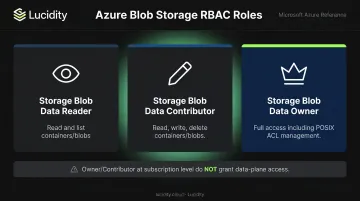
Apply least privilege: if your app only reads blobs, assign Reader, not Contributor.
One critical network note: if the storage account has firewall rules enabled, managed identity authentication requests will still be blocked at the network layer. Go to Networking → Firewalls and virtual networks and enable "Allow Azure services on the trusted services list to access this storage account."
Step 3: Update Your Application to Use an Identity-Based Connection
Instead of a connection string containing an account key, your application now uses the storage account endpoint URL and authenticates via DefaultAzureCredential from the Azure Identity SDK.
DefaultAzureCredential automatically picks up the managed identity when running in Azure. During local development, it falls back through a credential chain (Azure CLI login, Visual Studio, environment variables), so the same code works in both environments.
Required packages:
| Runtime | Packages |
|---|---|
| .NET | Azure.Storage.Blobs + Azure.Identity |
| Node.js | @azure/storage-blob + @azure/identity |
| Python | azure-storage-blob + azure-identity |
General code pattern (.NET):
var client = new BlobServiceClient(
    new Uri("https://{account-name}.blob.core.windows.net"),
    new DefaultAzureCredential()
);
Azure Functions specifically: rename the AzureWebJobsStorage app setting to AzureWebJobsStorage__accountName (double underscore) and set the value to just the storage account name. This tells the Functions runtime to use identity-based access rather than a connection string.
Step 4: Disable Storage Account Key Access (Optional but Recommended)
Once identity-based access is verified and working:
- Go to Storage Account → Configuration
- Toggle Allow storage account key access to Disabled
- Save
Before disabling, audit everything connected to this storage account. Any service still using a key-based connection string will immediately lose access. Migrate all dependents to managed identity first, confirm each one works, then disable.
System-Assigned vs. User-Assigned Managed Identity
Both types authenticate through Microsoft Entra ID. The difference is lifecycle and reusability.
System-assigned:
- Created automatically for a single Azure resource
- Deleted when the resource is deleted
- No extra resource management required
- Use when one resource needs access to one storage account
User-assigned:
- Created as a standalone Azure resource
- Can be assigned to multiple Azure resources simultaneously
- Persists independently of any one resource's lifecycle
- Best for shared access patterns across multiple resources
Microsoft recommends user-assigned identities for workloads running on multiple resources, for pre-authorizing access before resources are provisioned, and for ephemeral compute that gets frequently replaced.
| Scenario | Choose |
|---|---|
| One App Service reading one storage account | System-assigned |
| Three Function Apps sharing the same storage | User-assigned |
| Resources that get redeployed frequently | User-assigned |
| Simplest possible setup | System-assigned |
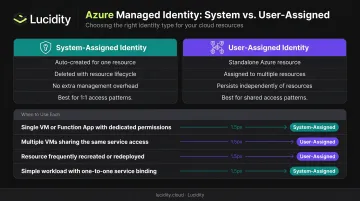
Both types can coexist on a single resource — useful when you need a system-assigned identity for resource-specific access while also sharing a user-assigned identity with other services.
When Managed Identity Is (and Isn't) the Right Fit
Not every access pattern calls for managed identity — but for Azure-hosted workloads, it's the default choice for good reason. Microsoft recommends managed identities with Microsoft Entra ID for authorizing Blob Storage requests, and Azure manages credentials automatically, never storing them in application code.
Where managed identity works well:
- App Service and Azure Functions applications
- VMs and Container Apps
- AKS workloads (using Microsoft Entra Workload Identity)
- Azure Data Factory and Synapse pipelines reading from blob containers
- CI/CD pipelines running on Azure DevOps agents
- AI/ML workloads reading training data from blob storage
Where managed identity doesn't apply:
- Access from on-premises systems or non-Azure clouds — managed identity tokens are only available to Azure-hosted resources
- Granting time-limited access to external clients — SAS tokens (preferably user delegation SAS, secured with Entra credentials) remain the right tool here
- Older SDKs or services that don't yet support
DefaultAzureCredentialor identity-based connections
If your workload runs on Azure, managed identity should be your starting point. The scenarios above are where you'd reach for something else — and knowing which category you're in before writing a line of configuration saves time later.
Common Mistakes When Configuring Managed Identity
1. Assigning the wrong RBAC role
The most frequent error: assigning Owner or Contributor at the subscription or resource group level and wondering why blob access still fails. These are management-plane roles — they control Azure resources but don't grant access to blob data. Only roles with explicit data actions work at the storage scope: Storage Blob Data Reader, Storage Blob Data Contributor, or Storage Blob Data Owner.
2. Testing immediately after role assignment
Role assignment changes can take up to 10 minutes to propagate; for managed identity group membership changes, the back-end cache can take several hours. A 403 Forbidden error right after assignment is usually a timing issue, not a misconfiguration. Wait at least 10 minutes — or a few hours for group membership changes — before troubleshooting.
3. Overlooking firewall rules
A correctly configured managed identity with a valid role assignment can still fail if the storage account's firewall doesn't allow trusted Azure services. This is a network-layer block — it looks identical to a permissions error but has a different fix.
4. Disabling key access before testing identity-based access
Disabling keys before confirming the identity-based path works is a straightforward way to lock yourself out. Always complete a successful read or write operation through managed identity first.
5. Skipping local developer credential configuration
DefaultAzureCredential works automatically in Azure. Locally, it needs a fallback: run az login for Azure CLI, or ensure your IDE (Visual Studio, VS Code) has an Azure account signed in. Teams that skip this step hit authentication failures in development and incorrectly assume the production setup is broken.
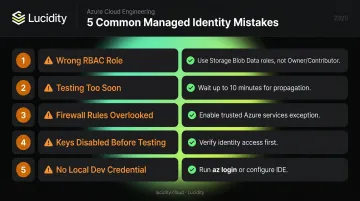
Troubleshooting Azure Blob Storage Managed Identity Issues
Most issues fall into three categories: identity not enabled correctly, missing or wrong role assignment, or network-level blocks. Start with the storage account's resource logs in Azure Monitor: they capture the security principal, key, or SAS token used for each request, which usually pinpoints the failure right away.
403 Forbidden or AuthorizationPermissionMismatch
The managed identity is missing the required Storage Blob Data role at the correct scope, or the role hasn't propagated yet. Check these first:
- Verify the role assignment on the storage account's IAM blade
- Confirm the correct identity (system vs. user-assigned) is assigned
- Wait up to 10 minutes (or longer for cached memberships) and retry
- Check that the endpoint URL in your app points to the correct storage account
Managed Identity Fails with Firewall-Restricted Storage
When your identity is correct but requests still fail, the firewall is likely blocking at the network layer — not the identity layer. To resolve this:
- Go to Storage Account → Networking → Firewalls and virtual networks
- Enable "Allow Azure services on the trusted services list to access this storage account"
- Confirm the compute resource isn't routing traffic outside trusted Microsoft network paths
DefaultAzureCredential Works in Azure but Fails Locally
This usually means no fallback credential is configured in the local environment. DefaultAzureCredential works in Azure because managed identity is available there — locally, it needs an alternative auth source:
- Run
az loginto authenticate via Azure CLI - Set
AZURE_CLIENT_ID,AZURE_CLIENT_SECRET, andAZURE_TENANT_IDenvironment variables for a service principal - For Visual Studio or VS Code users, confirm your Azure account is signed in within the IDE
Frequently Asked Questions
What is the difference between system-assigned and user-assigned managed identity for Azure Blob Storage?
System-assigned identity is created automatically for a single resource and deleted when that resource is deleted. User-assigned identity is an independent Azure resource that can be assigned to multiple compute resources simultaneously and persists independently of any individual resource's lifecycle.
Can I use managed identity to access Azure Blob Storage from an on-premises environment?
Managed identity tokens are only available to Azure-hosted resources, so on-premises access isn't supported. For access from outside Azure, use user delegation SAS tokens (secured with Microsoft Entra credentials) or service principals with certificates instead of account keys.
Which RBAC role grants read-only access to Blob Storage via managed identity?
Storage Blob Data Reader grants read-only access to containers and blobs. Avoid assigning broader roles like Contributor or Owner at the subscription or resource group level. These cover management-plane operations only and do not grant blob data-plane access.
How long does it take for a managed identity role assignment to propagate?
Typically within 10 minutes — but group membership cache changes can take several hours, per Microsoft's troubleshooting documentation. If access errors appear immediately after assignment, wait before assuming misconfiguration.
Does managed identity eliminate the need for SAS tokens entirely?
For Azure-hosted workloads, yes. Managed identity replaces SAS tokens in most scenarios. SAS tokens remain useful for granting time-limited access to external clients or for operations that don't fit within Azure RBAC.
Can managed identity work with a storage account protected by a private endpoint or firewall?
Yes, but the storage account's networking settings must allow trusted Azure services, and the compute resource must be within the allowed network scope. A valid role assignment alone isn't sufficient if the network layer is blocking requests.