Introduction
Setting up an Azure Blob Storage connector looks simple on paper—but the details matter. A wrong authentication method, malformed blob path syntax, or a missed firewall rule won't always surface an obvious error. Sometimes the connector appears to connect successfully while silently failing to read or write data.
The most common pain points are:
- 401/403 errors from credential mismatches or insufficient IAM permissions
- Empty result sets from incorrect container path or blob prefix configuration
- Broken workflows triggered by expired SAS tokens or rotated access keys nobody updated in the connector
This guide covers every stage of a correct setup—from prerequisites and authentication options through post-deployment validation and error fixes.
Key Takeaways
- Azure Blob Storage connector setup requires a storage account, at least one blob container, and valid credentials
- Three authentication methods: account key (simplest), SAS token (time-limited), or managed identity/service principal (production standard)
- Setup sequence: gather credentials → choose authentication → configure the connection → define the operation → test
- Always test before going live — silent failures are easier to catch before production workflows activate
- Same-region restrictions and firewall rules are the most common silent blockers — resolve both before activation
Setting Up the Azure Blob Storage Connector
The setup process moves through four stages: gathering credentials, creating the connection, configuring operation settings, and validating access. Skipping any stage is the leading cause of failed integrations.
Prerequisites
Before touching the connector configuration, confirm the following are in place:
Storage account requirements:
- An active Azure subscription
- A storage account of a supported type: general-purpose v2 (recommended), general-purpose v1, BlobStorage, or BlockBlobStorage
- At least one blob container already created
- Access credentials appropriate to your chosen authentication method
Blob size limits by platform (check before configuring):
- Azure Logic Apps managed connector: reads and writes up to 50 MB per action; chunking is supported up to 1,024 MB
- Boomi cloud runtime: the Azure SDK prevents processing blobs larger than 64 MB on a cloud runtime—use a local runtime for larger files
Required checks before starting:
- Verify public access settings on the storage account—anonymous access is disabled by default and should stay that way for enterprise connectors
- Confirm the integration platform has network access to the storage endpoint (check firewall rules and IP allowlists)
- Ensure blob and directory names comply with Azure's naming rules: 1–1,024 characters, no trailing dots or slashes, no reserved URL characters, case-sensitive
Step-by-Step: Configuring the Azure Blob Storage Connector
With prerequisites confirmed, work through the following steps in order.
Step 1: Select the connector
In your integration platform (Azure Logic Apps, Boomi, Salesforce Data Cloud, Domo, Adobe Experience Platform, etc.), navigate to the connector gallery or data source section and select Azure Blob Storage as the connector type.
Step 2: Create a new connection
Provide a connection name, select your authentication type, and enter the required credentials. The exact fields depend on the authentication method—covered in the next section.
Step 3: Configure operation settings
Specify the container name and, where applicable, the folder or blob path. Path syntax varies by platform:
| Platform | Path Format | Notes |
|---|---|---|
| Azure Logic Apps | /<container-name>/<blob-name> |
Root-level paths are supported |
| Salesforce Data Cloud | folder/subfolder/ |
Must end with trailing slash; no leading slash; cannot connect to container root |
| Boomi | directory/subdirectory/ |
Confirm syntax in Boomi documentation |
Step 4: Set additional parameters
Configure any remaining settings for your use case—file type, encoding, blob search filters, trigger conditions, or scheduling interval—then save the configuration.
Authentication Methods for the Azure Blob Storage Connector
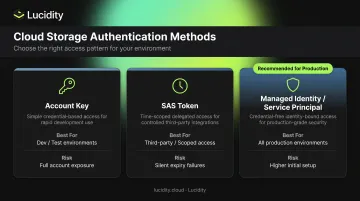
The Azure Blob Storage connector supports three authentication methods: Account Key, SAS Token, and Managed Identity / Service Principal. Your choice depends on the environment (dev vs. production) and how tightly you need to scope access.
Account Key Authentication
| Method | Best For | Key Risk |
|---|---|---|
| Account Key | Dev/test environments | Full account access if key is exposed |
| SAS Token | Third-party integrations, scoped access | Silent failures on token expiry |
| Managed Identity / Service Principal | All production environments | Slightly higher initial setup effort |
What it requires: Storage account name + primary or secondary access key, found in the Azure portal under Security + Networking > Access Keys.
When to use it: Development and testing environments where setup speed matters more than access granularity.
The catch: Account keys grant unrestricted access to the entire storage account. Key rotation and secure credential storage aren't optional—they're essential practices when using this method.
SAS Token Authentication
What it requires: A Shared Access Signature URI granting time-limited, permission-scoped access to a container or blob.
Microsoft defines three SAS types:
- User delegation SAS — secured with Microsoft Entra credentials (most secure SAS option)
- Service SAS — secured with the account key, scoped to one storage service
- Account SAS — secured with the account key, scoped to one or more services
When to use it: Delegated connector access, third-party integrations, or any scenario where you want scoped permissions without exposing the account key.
SAS tokens expire. When a token expires without being updated in the connector configuration, connections fail silently — no obvious error, just broken workflows. Schedule token renewal before expiration and treat it as a required maintenance task, not an afterthought.
Managed Identity / Service Principal Authentication
What it requires:
- Service principal: Client/application ID, client secret, and tenant ID
- System-assigned managed identity: Enabled on the Logic App resource (Standard workflows enable this automatically; Consumption workflows require manual enablement)
The identity must be assigned the Storage Blob Data Contributor role on the target storage account. This role grants read, write, and delete access to blob containers and blobs.
When to use it: Any production environment. This method eliminates static credentials entirely, every access event is logged in Azure's RBAC audit trail, and there's no secret rotation to manage — which removes an entire category of operational risk.
Post-Setup Validation and Testing
A saved configuration means nothing until you've confirmed it actually works. Run these three checks before any workflows go live.
Connection Test
Use the platform's built-in Test Connection function immediately after saving. This confirms the connector can authenticate and reach the target container. A passing test eliminates the most common authentication and network issues before you spend time on workflow configuration.
Functional Test
Trigger a small read or write operation against real data:
- Get operation: Verify that blob properties are returned correctly—
Content-Type,Last-Modified, andContent-Lengthshould all appear in the response. A successful get returns HTTP 200 OK - Put operation: Confirm the blob appears in the container after the operation completes
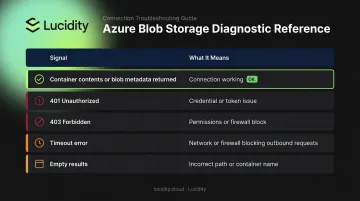
Reading the Results
| Signal | What It Means |
|---|---|
| Container contents or blob metadata returned | Connection is working |
| 401 Unauthorized | Credential issue—wrong key, expired token, or malformed connection string |
| 403 Forbidden | Permissions mismatch or firewall block |
| Timeout error | Network or firewall blocking the connector's outbound requests |
| Empty results | Incorrect container name or path configuration |
Common Azure Blob Storage Connector Problems and Fixes
403 Forbidden / Unauthorized Access Errors
Problem: The connector returns a 403 Forbidden or "This request is not authorized" error.
Likely causes:
- Logic Apps managed connector and storage account are in the same Azure region — IP network rules don't apply to same-region requests, so the firewall blocks the connector even when IP allowlisting appears correct
- Managed identity is missing its role assignment
- Firewall rules are blocking the connector's outbound IP addresses
Fixes:
- Move the logic app resource to a different region from the storage account
- Add the connector platform's outbound IP addresses to the storage account firewall allowlist
- Enable a system-assigned managed identity with the Storage Blob Data Contributor role and turn on "Allow Azure trusted services" in storage networking settings
Credential or Connection String Errors
Problem: The connection fails immediately with an authentication error despite credentials that appear valid.
Likely causes:
- SAS token has expired
- Access key was rotated after the connector was last configured
- Connection string is malformed — wrong format, extra whitespace, or wrong key pasted
Fixes:
- Regenerate the SAS token or access key in the Azure portal under Security + Networking > Access Keys
- Copy the connection string directly from the portal rather than typing it manually
- Re-enter credentials in the connector configuration and test the connection
Blob Not Found / Empty Results
Problem: The connector authenticates successfully but cannot locate expected blobs or returns empty data.
Likely causes:
- Container name is misspelled or uses incorrect casing (blob names are case-sensitive)
- Path syntax doesn't match the platform's requirements
- On platforms that don't support root-level container connections (like Salesforce Data Cloud), the path points to the container root instead of a specific folder
Fixes:
- Verify the exact container name as it appears in the Azure portal
- Confirm your path syntax matches the platform's requirements, including trailing and leading slashes
- For platforms requiring a subfolder path, specify at least one directory level below the container root
Pro Tips for Configuring the Azure Blob Storage Connector Effectively
Rotate access keys on a schedule, not when something breaks. Key expiry is one of the most common causes of unexpected production connector failures. Document rotation dates and set calendar reminders—proactive rotation takes minutes; reactive troubleshooting during an incident takes much longer.
Apply least privilege across every authentication method. Restrict SAS tokens to the minimum permissions and shortest viable expiry window. Scope service principal roles to only the storage resources the connector actually needs. The Storage Blob Data Contributor role is appropriate for read/write connector operations—don't assign Owner or Contributor at the subscription level when a scoped role will do.
Monitor Azure block storage costs once connectors are in production. Blob connector reliability is only part of the picture. Teams that also manage Azure Managed Disks alongside Blob often find that idle volumes, tiering mismatches, and over-provisioned capacity quietly accumulate once connectivity is established and attention shifts elsewhere.
Lucidity's Lumen provides real-time visibility across Azure block storage, surfacing idle disks, tiering gaps, and over-provisioned volumes that native Azure dashboards don't flag. For FinOps and ITOps teams where storage cost control is an active priority, it addresses the block storage side of what connector workflows set in motion.
Frequently Asked Questions
What is an Azure connector?
An Azure connector is a pre-built integration component that allows external platforms—such as Azure Logic Apps, Boomi, or Salesforce Data Cloud—to communicate securely with Azure services like Blob Storage without requiring custom API development. Connectors handle authentication, request formatting, and error handling out of the box.
What credentials do I need to set up an Azure Blob Storage connector?
At minimum, you need your storage account name and one of: an access key, a SAS token URI, or service principal credentials (client ID, client secret, and tenant ID). All of these are accessible in the Azure portal under Security + Networking > Access Keys.
Which authentication method should I use?
Use account key for development and testing. Use SAS tokens for delegated or temporary third-party access with scoped permissions. For production enterprise deployments, managed identity or service principal authentication is the right choice—it eliminates static credentials and provides full audit trails.
What are the file size limits for Azure Blob Storage connectors?
Limits vary by platform. The Azure Logic Apps managed connector supports up to 50 MB per action, with chunking available up to 1,024 MB. Boomi's cloud runtime limits blob processing to 64 MB—larger files require a local runtime.
How do I fix a 403 Forbidden error when connecting to Azure Blob Storage?
The three most common causes are:
- Connector and storage account in the same Azure region (a known managed connector limitation)
- Firewall rules blocking the connector's outbound IPs
- Managed identity missing its role assignment
See the troubleshooting section above for specific fixes for each scenario.
Can I use a managed identity instead of an access key?
Yes, and for production environments it's the recommended approach. Enable a system-assigned managed identity on the integration resource, then assign it the Storage Blob Data Contributor role on the target storage account. Standard Logic App workflows handle this automatically; Consumption workflows require manual setup.