Flexera's 2026 State of the Cloud report puts estimated wasted cloud spend at 29% industry-wide, with cloud spend management ranking as the top challenge for 85% of organizations. Unused storage accounts are a concrete, fixable slice of that problem.
This guide covers exactly how to identify them — using the Azure Portal, PowerShell, and the Azure CLI — plus how to interpret what you find and what to do before you delete anything.
Key Takeaways
- Zero or near-zero Transactions, Ingress, and Egress over 30–90 days signals an unused storage account
- Background services can create low activity on idle accounts, so metrics alone don't tell the full story
- The three methods covered here: Azure Monitor Storage insights (Portal),
Get-AzMetric(PowerShell), andaz monitor metrics list(CLI) - Zero transactions ≠ safe to delete — verify no Azure Functions, Logic Apps, diagnostic settings, or backup jobs depend on it first
- Before deleting: export data, clear diagnostic settings, and confirm stakeholder sign-off
What Counts as an Unused Azure Storage Account?
"Unused" is not the same as "empty." An unused storage account is one with no meaningful read/write activity from actual workloads over a sustained period — typically 30 to 90 days — no active integrations pointing to it, and no data that's still operationally or compliance-critical.
Why Zero Transactions Can Mislead You
Some accounts will show low but non-zero transaction counts even when no real workload is using them. Background services are the usual culprit:
- Azure Functions — timer triggers use blob storage via
AzureWebJobsStorageto coordinate scale-out instances - Logic Apps (Standard, stateful) — the runtime makes storage transactions that follow Azure Storage pricing
- Diagnostic settings — Azure Monitor can route logs and platform metrics to a storage account, generating ongoing write activity
- Soft delete — soft-deleted blobs are billed at standard rates and can increase listing operation counts
- Lifecycle management — Set Blob Tier operations incur standard transaction costs
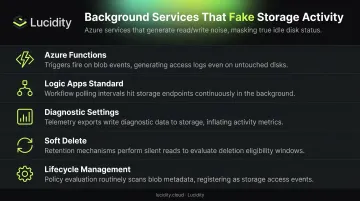
An account used only by a polling Logic App trigger might register 5–50 transactions per day. That's infrastructure overhead, not business usage. Before you act on any account, confirm whether the traffic source is a real workload or a background service — the cleanup steps differ significantly.
What It Actually Costs to Leave Them Running
Even an "empty" account carries real costs. Each one is billed across several dimensions:
- Capacity tier — Hot, Cool, and Archive have different per-GB rates
- Redundancy level — LRS, ZRS, and GRS each carry separate pricing
- Transactions and egress — background services keep these non-zero
- Microsoft Defender for Storage — $10 per account per month, regardless of usage
Multiply that across 20 or 30 orphaned accounts and the monthly line item becomes significant fast.
What You Need Before You Start
Access and Permissions
| Task | Required Role |
|---|---|
| View metrics and account properties | Reader (subscription scope) |
| Delete storage accounts | Contributor or Owner |
| View monitoring data (metrics, logs) | Monitoring Reader |
| Manage storage accounts directly | Storage Account Contributor |
Azure Cloud Shell is the easiest starting point if you don't have PowerShell or CLI installed locally — it requires no setup and runs authenticated in your browser.
Tools Involved
- Azure Monitor Storage insights — built into the Portal, no setup required
- Az.Storage and Az.Monitor modules — needed for the PowerShell method
- Azure CLI — cross-platform and scriptable, used for the CLI method
- Azure Advisor — a useful first pass for quick cost recommendations
Check Azure Advisor before diving into manual methods. It surfaces some storage cost recommendations, but won't catch every unused account comprehensively.
Methods to Find Unused Azure Storage Accounts
Three methods are covered below. Start with the Portal for a fast visual sweep — no scripting needed. Move to PowerShell or CLI when you need multi-subscription coverage, automation, or a repeatable audit process.
Method 1: Azure Portal (Azure Monitor Storage Insights)
Best for: Quick first sweep across a single subscription, no scripting required.
Steps:
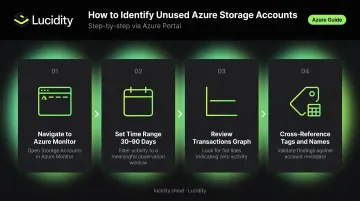
- In the Azure Portal, navigate to Azure Monitor → Storage Accounts (officially called Azure Monitor Storage insights)
- Select your subscription and set the time range to 30–90 days
- Review the Transactions graph for each storage account — flat or zero lines across the full window are candidates for review
- Cross-reference account names and tags to identify purpose and owner before drawing any conclusions
What to watch for: Azure Monitor stores platform metrics for up to 93 days, but the portal chart is limited to a 30-day view on a single chart. If you need a longer lookback, use the PowerShell or CLI methods.
Limitations:
- Doesn't surface linked dependencies
- Archive-tier accounts with legitimately zero transactions look identical to truly unused accounts
- Doesn't scale well across multiple subscriptions
Method 2: PowerShell (Get-AzMetric)
Best for: Multi-subscription environments, repeatable audits, automation.
Steps:
Connect to Azure and retrieve all storage accounts:
Connect-AzAccount
$accounts = Get-AzStorageAccount
For each account, query Transactions, Ingress, and Egress over a 90-day lookback:
$startTime = (Get-Date).AddDays(-90)
foreach ($account in $accounts) {
    $metrics = Get-AzMetric -ResourceId $account.Id `
        -MetricName "Transactions","Ingress","Egress" `
        -StartTime $startTime
    # Check if returned data is null or empty
}
Collect accounts where all three metrics return null or zero into an array and output as a table showing account name, resource group, and last-modified date
Use
Remove-AzStorageAccountonly after completing dependency checks
Limitations:
- Last-modified date reflects container-level changes, not data access — read-only activity won't appear
- Doesn't confirm active dependencies — a service may still reference the account even with zero recent transactions
Method 3: Azure CLI (az monitor metrics list)
Best for: CLI-first teams, CI/CD pipeline integration, cross-platform automation.
Steps:
List all storage accounts and capture their resource IDs:
az storage account list --query "[].{name:name, id:id, rg:resourceGroup}" -o tableFor each account, pull transaction metrics over a 30–90 day window:
az monitor metrics list \
  --resource <resource-id> \
  --metric "Transactions" \
  --start-time 2025-03-01T00:00:00Z \
  --interval PT1H \
  --output json
Parse the JSON output to check whether the total value is zero or null. Export flagged accounts to JSON or CSV for follow-up review.
Limitations:
- Requires JSON parsing unless additional tooling is used
- Shares the same dependency blind spot as the PowerShell approach — metric data alone won't reveal active service references
How to Interpret Your Findings
Zero metrics don't automatically mean safe to delete. Interpreting results requires combining metrics data with account context.
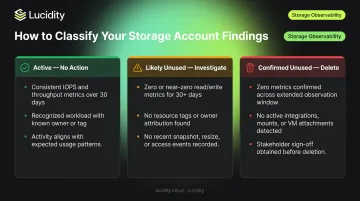
Decision Framework
Active — No Action Needed:
- Consistent Transactions, Ingress, or Egress over the lookback window
- Tagged as active backup, archive-tier with documented retention requirements, or owned by a known active workload
- Healthy Azure Monitor patterns show regular spikes or consistent baseline activity
Likely Unused — Investigate Further:
- Zero Transactions, Ingress, and Egress with no tags or identifiable owner
- Next steps: check for active Logic Apps, Azure Functions, diagnostic settings, or backup jobs pointing to this account
- Reach out to the tagged owner if one exists, and verify what's actually stored before proceeding
Confirmed Unused — Eligible for Deletion:
- Zero metrics, no active integrations, no critical stored data, confirmed by resource owner or stakeholder as no longer needed
- Safe deletion workflow: export data if needed → remove diagnostic settings → delete the account → document the action
The Background Service Misinterpretation
An Azure Function on a 15-minute timer trigger generates blob storage transactions every time it fires to coordinate scale-out — roughly 96 transactions per day. The storage account itself may contain nothing meaningful, and no human-initiated read or write has occurred in months.
Yet it shows thousands of transactions in a 90-day window. Without understanding why those transactions exist, you'd likely classify it as active — incorrectly.
Trace the transaction source first. Transaction volume alone doesn't confirm an account is doing meaningful work.
Common Mistakes and Best Practices Before Deleting
Mistakes to Avoid
Deleting based on transaction data alone. Azure Functions require a default storage account, and deleting the linked account will break the function app. Timer triggers specifically use blob storage to coordinate across scale-out instances — this dependency is easy to miss.
Checking only blob containers. A storage account can hold blobs, files, queues, and table storage. An account with no blob containers might still be serving active queue messages or table data. Any audit needs to cover all four storage services within the account.
Treating "no blobs" as "unused." Some accounts serve as pure queue backends for messaging workflows or hold diagnostic table data — neither of which appears in a standard blob-focused check.
Best Practices Before Deletion
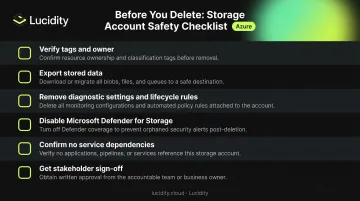
Follow this checklist before removing any storage account:
- Verify tags and naming conventions — identify the owner and original purpose
- Export or snapshot any stored data (blobs, files, tables, queues)
- Remove associated diagnostic settings and lifecycle management rules
- Check whether Microsoft Defender for Storage is enrolled on the account — this incurs cost independently and needs to be disabled
- Confirm no Azure Functions, Logic Apps, backup jobs, or application integrations reference this account
- Get stakeholder sign-off, especially for accounts in production subscriptions
Building Prevention Into Your Process
Reactive audits are expensive to run and easy to skip. Two practices reduce the recurring burden:
- Enforce a tagging policy at account creation — include owner, environment, and expiry date as required tags. Azure Policy supports
modifyeffects to add tags automatically anddenyeffects to block untagged resources - Schedule recurring audits quarterly — use the PowerShell or CLI methods above on a cron schedule; monthly automated checks make sense for larger environments
For teams dealing with managed disk waste alongside blob storage cleanup, Lucidity's Lumen detects idle disks — including unattached, unmounted, and zero-I/O volumes — that native Azure dashboards don't surface, across AWS, Azure, and Google Cloud from a single view.
Frequently Asked Questions
How do I identify unused resources in Azure?
Azure Monitor, Azure Advisor, PowerShell (Get-AzMetric), and the Azure CLI (az monitor metrics list) are the primary tools. Filtering for zero Transactions, Ingress, and Egress over 30–90 days is the standard starting point, but dependency checks are required before any deletion action.
What counts as an unused Azure storage account?
An unused storage account shows no meaningful read/write activity from active workloads over a sustained period, has no live application or service integrations, and holds no data required for compliance or operations — unlike accounts that are simply empty.
Can an unused storage account still show transactions?
Yes. Background services — Azure Functions on timer triggers, Logic Apps stateful workflows, diagnostic settings routing logs, and soft delete operations — can generate transactions on otherwise idle accounts. None of these indicate real business usage.
Is it safe to delete an Azure storage account without reviewing its contents first?
No. Deletion is permanent. Before removing any storage account:
- Verify stored data across blobs, files, queues, and tables
- Check all linked services and dependencies
- Remove or reassign diagnostic settings
- Get stakeholder confirmation
How often should I audit Azure storage accounts?
A quarterly cadence works for most environments. Larger environments benefit from automated monthly checks via PowerShell or CLI scripts. Enforcing a tagging policy at account creation — with owner and expiry fields — reduces audit effort at scale.
Does Azure Advisor flag unused storage accounts automatically?
Azure Advisor surfaces some storage cost recommendations, including lifecycle management opportunities and reserved capacity suggestions, but it does not identify all unused storage accounts. Use it as a quick first pass, then follow up with the manual methods covered in this guide.