Introduction
Azure Blob Storage versioning automatically preserves previous states of objects whenever they are modified or deleted — giving teams a built-in recovery mechanism without manual intervention. Each version gets a unique, timestamp-based version ID that can be used to retrieve or restore earlier states.
Enabling versioning takes one checkbox. Configuring it correctly takes more thought.
Outcomes vary based on account type, how you handle the retention clock, whether soft delete is active, and what lifecycle management rules are in place. Miss any of these, and you may have versioning enabled without meaningful data recovery capability — or face unexpectedly high storage bills from unchecked version accumulation.
This guide covers:
- What blob versioning is and when to use it
- Prerequisites and account-type requirements
- Step-by-step instructions across all four methods: Portal, PowerShell, CLI, and ARM Template
- How to configure versioning alongside soft delete and lifecycle management
Key Takeaways
- Blob versioning creates a new version on every write or delete, identified by a unique timestamp-based version ID
- Enabling versioning alone is not enough — pair it with blob soft delete and a lifecycle management policy
- Supported on standard GPv2, premium block blob, and legacy Blob storage accounts; not supported on HNS/Data Lake Storage Gen2 accounts
- Without a lifecycle policy, versioning quietly accumulates versions and drives up storage costs — especially for frequently overwritten blobs
- Microsoft recommends combining blob versioning, container soft delete, and blob soft delete for complete data protection
What Is Azure Blob Storage Versioning?
Blob versioning is a feature that automatically maintains previous states of a blob on every qualifying write or delete operation. You don't trigger it manually — Azure handles version creation transparently.
Here's how the lifecycle works:
- On first write: The blob has one current version
- On overwrite: The prior state becomes a previous version; a new current version is created
- On deletion: The current version becomes a previous version; a subsequent write creates a new current version
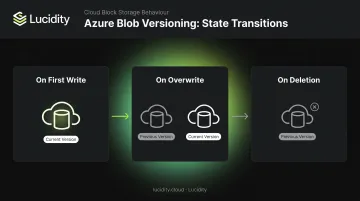
The version ID is timestamp-based and immutable — assigned at creation and returned in the x-ms-version-id response header. Write operations that trigger new versions include Put Blob, Put Block List, Copy Blob, and Set Blob Metadata. For block blobs, Put Block does not create a version.
Versioning vs. Snapshots
Both features preserve blob state, but they serve different purposes — and the distinction affects cost and operational overhead:
| Feature | Created By | Timing | Read/Write |
|---|---|---|---|
| Blob versioning | Azure (automatic) | Every qualifying write or delete | Previous versions are read-only |
| Blob snapshots | User or application | Manually triggered | Read-only |
Once versioning is enabled, applications should stop taking snapshots of block blobs. Versions already capture block blob updates and deletions, so snapshots don't add protection — they add cost and operational overhead.
Prerequisites for Enabling Azure Blob Storage Versioning
Before you open the portal or run a command, confirm these three things.
Supported Account Types
Blob versioning is available on:
- Standard general-purpose v2 (GPv2)
- Premium block blob
- Legacy Blob storage accounts
Not supported: Storage accounts with hierarchical namespace (HNS) enabled — meaning Azure Data Lake Storage Gen2 accounts. The option won't appear in the portal, and API calls will fail. Blobs uploaded via the Data Lake Storage Gen2 REST API are also excluded, even if the underlying account type would otherwise qualify.
Required RBAC Permissions
- Storage Account Contributor (or equivalent write access to blob service properties) — required to enable versioning
- Storage Blob Data Owner — required to delete a previous version; the specific action is
Microsoft.Storage/storageAccounts/blobServices/containers/blobs/deleteBlobVersion/action
Contributor access is not sufficient for version deletion. Confirm role assignments before enabling, especially in environments where least-privilege access is enforced.
Pre-Configuration Checks
With permissions confirmed, review these two configuration dependencies before proceeding:
- Existing lifecycle management policies: Enabling versioning via the portal with the "Delete versions after" option will automatically add a rule to the existing policy. Review any current rules beforehand to avoid conflicts.
- Object replication policies: If object replication is configured on the account, disabling versioning in the future will require removing those policies first. Make note of this dependency now.
How to Enable Azure Blob Storage Versioning
Azure Blob Storage versioning can be enabled through four methods — pick whichever fits your workflow.
Via Azure Portal
- Navigate to your storage account in the Azure Portal
- Under Data Management, select Data Protection
- In the Tracking section, check Enable versioning for blobs
- Choose to keep all versions indefinitely, or enable Delete versions after [X] days for automatic cleanup
- Select Save
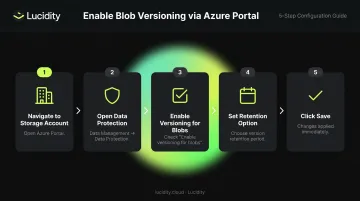
Important: When you enable the "Delete versions after" option, Azure automatically creates a lifecycle management rule. Once that rule exists, the "Delete versions after" option disappears from the Data Protection page. To modify retention, edit the lifecycle rule directly under Data Management → Lifecycle Management.
Via PowerShell
Use the Update-AzStorageBlobServiceProperty cmdlet:
# Enable blob versioning on a storage account
Update-AzStorageBlobServiceProperty `
  -ResourceGroupName "your-resource-group" `
  -AccountName "your-storage-account" `
  -IsVersioningEnabled $true
Replace your-resource-group and your-storage-account with your actual values.
Via Azure CLI
# Enable blob versioning using Azure CLI
az storage account blob-service-properties update \
  --resource-group your-resource-group \
  --account-name your-storage-account \
  --enable-versioning true
Via ARM Template
Add the isVersioningEnabled property under Microsoft.Storage/storageAccounts/blobServices. Use API version 2019-06-01 or later:
{
  "type": "Microsoft.Storage/storageAccounts/blobServices",
  "apiVersion": "2019-06-01",
  "name": "[concat(parameters('accountName'), '/default')]",
  "properties": {
    "isVersioningEnabled": true
  }
}
Note the lowercase i in isVersioningEnabled — this is the correct ARM/Bicep property casing. After saving the template, specify your resource group and deploy via the Azure Portal's Template Deployment resource.
Versioning, Soft Delete, and Lifecycle Management: The Complete Setup
Enabling versioning is step one. Without the right supporting configuration, it provides weaker protection than most teams assume.
The Retention Clock Problem
Lifecycle policy rules for previous versions use daysAfterCreationGreaterThan — meaning the retention clock starts from when the version was created, not from when the blob was deleted or when the version became inactive. This catches even experienced Azure teams off guard.
Practical example: a blob is created and actively used for 60 days, then deleted. If your lifecycle rule deletes previous versions after 30 days of creation, that version is already 60 days old at the moment of deletion — it will be purged almost immediately, giving you essentially no recovery window.
Adding Blob Soft Delete as a Safety Net
Blob soft delete provides the second layer of protection. When soft delete is enabled, deleted versions enter a soft-delete state and are retained for the configured soft-delete retention period, separate from the versioning lifecycle rule.
Microsoft recommends enabling all three together:
- Blob versioning — tracks history automatically
- Blob soft delete — retains deleted versions for a configurable window
- Container soft delete — protects against container-level deletions
A practical combined configuration: set your lifecycle rule to delete previous versions after N days from creation, and set soft delete retention to a period that ensures you still have a recovery window even after the lifecycle rule fires.
Configuring the Lifecycle Management Rule
To add a rule targeting previous versions in the Azure Portal:
- Navigate to the storage account → Data Management → Lifecycle Management
- Select Add a rule
- Target Previous versions
- Set the action to Delete after a specified number of days from version creation
- Review any existing rules for conflicts before saving
Cost Implications
Blob versions are billed at the same rate as active data. The specifics matter:
- If blob/version tier has not been explicitly set: Charges apply only to unique data blocks across the blob, its versions, and snapshots — shared blocks are billed once
- If the tier has been explicitly changed (for example, moving a blob to Archive): The full content length of the entire object is billed in that tier, regardless of block sharing
Microsoft recommends maintaining fewer than 1,000 versions per blob — beyond that, listing latency increases noticeably. For data that is frequently overwritten (data pipelines, logging workloads), versioning can drive capacity charges up significantly. Microsoft's guidance for these workloads: store frequently overwritten data in a separate storage account with versioning disabled.
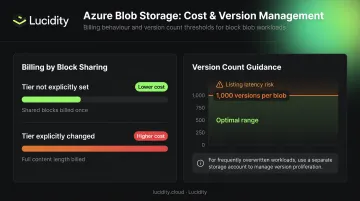
Pairing a well-tuned lifecycle policy with soft delete keeps your Blob storage costs predictable while maintaining a meaningful recovery window.
Common Mistakes When Enabling and Managing Azure Blob Versioning
Relying on versioning alone without soft delete
Teams enable versioning with a lifecycle rule and assume data is always recoverable within the policy window. Because the retention clock starts at version creation — not at deletion — a blob active for months before deletion may have its version expire almost immediately. Pair versioning with soft delete to guarantee a minimum recovery window after a version becomes inactive.
Skipping the lifecycle management policy
Without a lifecycle rule, every write operation creates a version retained indefinitely. For workloads that overwrite blobs frequently — ETL pipelines, log aggregation, reporting snapshots — this causes unchecked storage cost growth. Set a lifecycle rule at the same time you enable versioning — not as a follow-up task, but as a prerequisite.
Enabling versioning on unsupported account types
Attempting to enable versioning on an HNS-enabled account (Azure Data Lake Storage Gen2) will fail silently in the portal or return an API error. Two things to keep in mind:
- Use a separate standard GPv2 storage account without HNS for any data requiring versioning.
- Blobs uploaded via the Data Lake Storage Gen2 API are excluded from versioning even on supported account types.
Continuing manual snapshots after enabling versioning
If your team has existing snapshot-based workflows, be aware that snapshots and versions coexist once versioning is enabled — they don't replace each other automatically. This creates duplicate protection overhead, increases storage costs, and adds listing latency. Microsoft explicitly recommends stopping manual snapshot creation on block blobs once versioning is active — keeping both running provides no additional safety and compounds your bill.
Frequently Asked Questions
How do I enable versioning for Azure Blob Storage?
Blob versioning is enabled per storage account through four methods:
- Azure Portal: Data Management → Data Protection → Enable versioning for blobs
- PowerShell:
Update-AzStorageBlobServiceProperty -IsVersioningEnabled $true - Azure CLI:
az storage account blob-service-properties update --enable-versioning true - ARM Template: Set
isVersioningEnabledtotrueunderMicrosoft.Storage/storageAccounts/blobServices
How do I view blob versions in Azure Blob Storage?
In the Azure Portal, navigate to the container, select a blob, and click the Versions tab. Via PowerShell, use Get-AzStorageBlob with the -IncludeVersion parameter. Via Azure CLI, use az storage blob list with the --include v flag.
What is blob versioning in Azure?
Blob versioning is an Azure Blob Storage feature that automatically maintains previous versions of a blob whenever it is modified or deleted. Each version is identified by a unique timestamp-based version ID that can be used to access or restore earlier states.
Does enabling Azure Blob Storage versioning increase storage costs?
Yes. Each version is billed at the same rate as active data. Use a lifecycle management policy to auto-delete old versions and tier previous versions to Cool or Archive storage. For frequently overwritten blobs, Microsoft recommends a separate storage account.
Can I use blob versioning with Azure Data Lake Storage Gen2?
No. Blob versioning is not supported for storage accounts with a hierarchical namespace (HNS) enabled, which includes Data Lake Storage Gen2 accounts. It is also not supported for blobs uploaded via the Data Lake Storage Gen2 REST API, regardless of account type.
What is the difference between blob versioning and blob soft delete in Azure?
Blob versioning automatically preserves previous states on every write or delete operation. Soft delete retains deleted blobs or versions for a configurable period before permanent removal. The two are complementary: versioning tracks history across writes and deletes, while soft delete provides a guaranteed recovery window even after a version has been deleted or expired via a lifecycle rule.